Wednesday, March 9, 2016

Improved Trash support and folder colors in the Google Drive for iOS app

Posted: 09 Mar 2016 11:48 AM PST
An update to the Google Drive for iOS app is coming to the App Store. New features will include:
§ Trash View: You’ll now have the ability to view, restore and delete items in your trash from within the iOS app.
§ Folder Colors: You can now view and modify your Google Drive folder colors on the fly.


Launch Details
Release track:
Launching to both Rapid release and Scheduled release

Rollout pace:
Full rollout (1-3 days for feature visibility)

Monday, March 7, 2016

Export Google Docs files as EPUB publications

Posted: 07 Mar 2016 01:58 PM PST
EPUB is the most widely supported file format for publishing accessible documents and digital books, allowing people to consume long-form content in their preferred apps on a diverse range of screen sizes and devices, including smartphones, tablets, and eReaders. To make it easier for authors, publishers, and academic institutions to create works that can be consumed digitally, today we’re launching the ability to export Google Docs files as EPUB publications. Simply go to the File menu > Download as > EPUB Publication (.epub).


Check out the Help Center for more information.

Launch Details
Release track:
Launching to both Rapid release and Scheduled release

Rollout pace:
Full rollout (1–3 days for feature visibility)

Wednesday, March 2, 2016

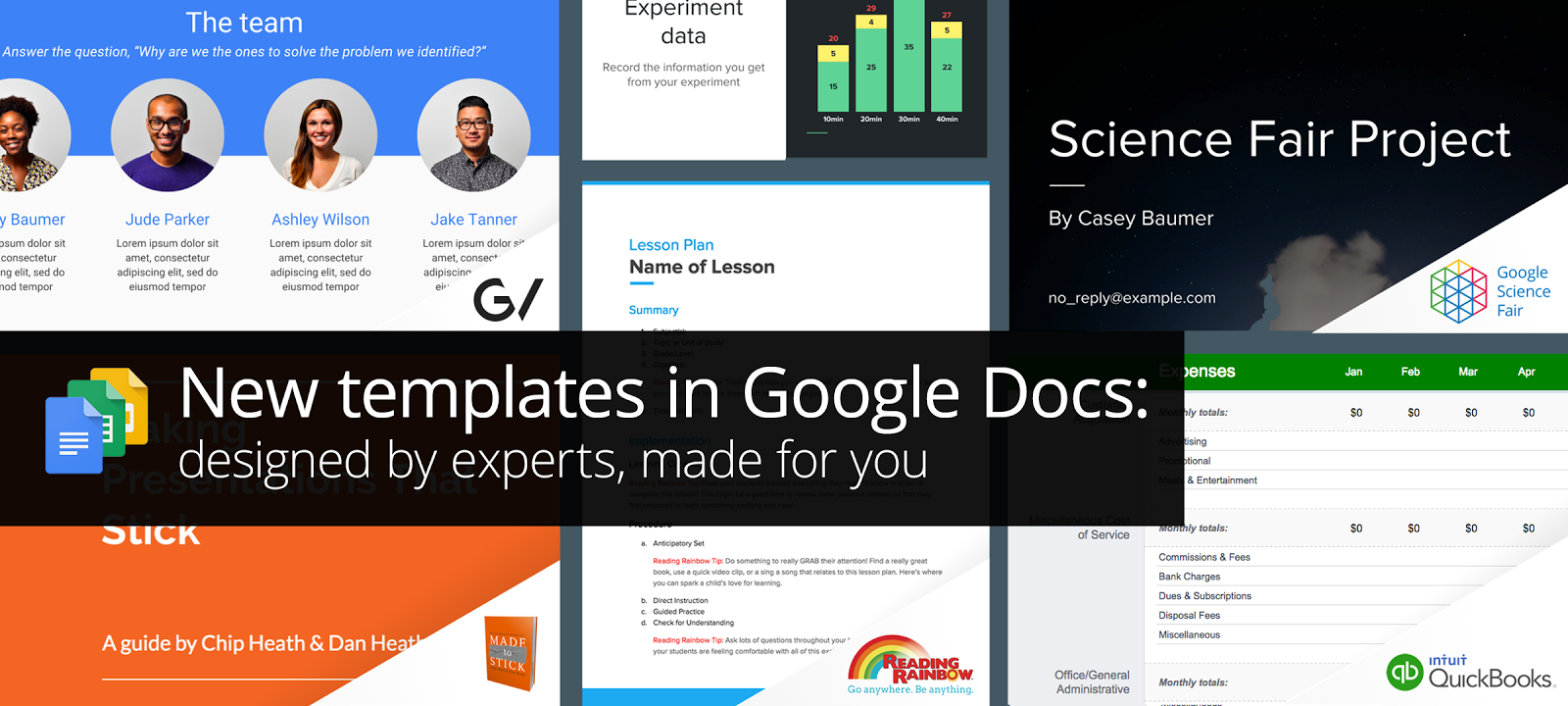
New templates in Google Docs: designed by experts, made for you

Posted: 02 Mar 2016 12:50 PM PST
(Cross-posted on the Google for Work Blog.)

We launched a collection of templates in Docs, Sheets, and Slides in September to give your documents, spreadsheets, and presentations the extra polish they deserve. Today, we’re adding to that collection with new templates designed by five experts in their fields. All templates are available on the web and on Android and iOS.


For your big ideas, at work and on the go
Intuit's QuickBooks software helps small business owners get more out of financial planning with tools like automated budgeting, tax time reports, and payroll. Use the new annual business budget template by QuickBooks in Sheets to easily manage your budget so you can focus on building your business.


GV provides venture capital funding to bold new companies. In the fields of life science, healthcare, artificial intelligence, robotics, transportation, cyber security, and agriculture, GV’s companies aim to improve lives and change industries.The new GV pitch template in Slides helps entrepreneurs share their vision, based on proven presentation tactics.


And, in the bestselling book, Made to Stick, brothers Chip and Dan Heath revealed that “sticky” messages of all kinds draw their power from the same main traits. In their big idea template in Slides, they use these principles to help you build and deliver your most memorable presentation yet.


For a head start, at school and beyond
Reading Rainbow, the third-longest-running children's TV series in US history and award-winning digital service, has been inspiring children to read for more than 30 years. Reading Rainbow created a lesson plan and a book report template in Docs to help teachers and students get things done.


The Google Science Fair (GSF) is an annual online science and engineering competition open to teens globally. In the competition, young scientists have tackled issues like world hunger, life-threatening diseases and the energy crisis. Use GSF’s science fair template in Slides for a head start on your next project—or for this year’s GSF.


Jump-start your next project with these easy-to-use templates in Docs, Sheets, and Slides—available on the web and on your Android device or iPhone. Let us know what you create!

Launch Details
Release track:
Launching to both Rapid release and Scheduled release

Rollout pace:
Full rollout (1–3 days for feature visibility)

Tuesday, March 1, 2016

Easily convert text to columns in Google Sheets

Posted: 01 Mar 2016 01:55 PM PST
We know that copying data and pasting it into a spreadsheet can be a pain if the data does not separate neatly into columns. With that in mind, today we're launching a feature in Google Sheets that allows you to split delimited data (e.g. data separated by commas) from one column across multiple columns.

There are a few ways you can split delimited data across columns. For example, you can select the columns you want to split, and click Data > Split text to columns. A menu will then appear underneath the data, allowing you to split the data using commas, semicolons, periods, spaces, and even custom separators.

In addition to the “Split text to columns” option, you can also format cells containing delimited data using a contextual menu that appears immediately after you’ve pasted data, as shown in the animation below. You can choose a custom separator through this method also. See the Help Center to learn more.


Launch Details
Release track:
Launching to Rapid release, with Scheduled release coming in two weeks.

Rollout pace:
Full rollout (1–3 days for feature visibility)

Thursday, February 25, 2016

Spruce up your spreadsheets and presentations with the latest versions of the Google Sheets and Slides apps for Android

Posted: 25 Feb 2016 01:57 PM PST
New versions of the Google Sheets and Slides apps for Android are now available on Google Play, making it even easier to work from your mobile phones and tablets. Read on for details.

We recognize that images can be the difference between a spreadsheet that’s difficult to interpret and one that effectively tells a story. To help you better convey your spreadsheet’s message on mobile, images will now render in the Google Sheets Android app. (Note that images in frozen rows and columns may not show properly.)

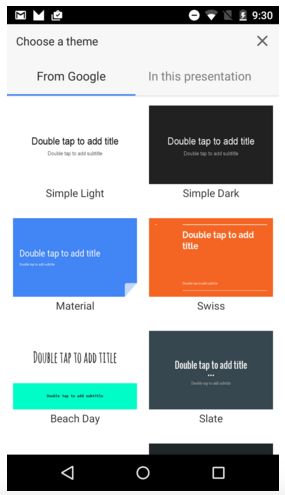
Similarly, themes allow you to quickly and easily craft engaging and effective presentations, so you need to be able to swap them in and out whether you’re working on your phone or your laptop. Starting today, as long as you’re online, you can change the theme of your presentation in the Google Slides Android app. There are 18 themes to choose from.


Launch Details
Release track:
Launching to both Rapid release and Scheduled release

Rollout pace:
Gradual rollout (potentially longer than 3 days for feature visibility)

Wednesday, February 24, 2016

Issue commands when voice typing in Google Docs

Posted: 24 Feb 2016 11:33 AM PST
In Google Docs, you don’t need to type to put words on a page—you can simply talk. But as any good employee knows, crafting an effective document takes a whole lot more than simply adding text. The process may involve bolding and italicizing, copying and pasting, inserting bullet points and tables, undoing and redoing formatting, and more.

Until now, it was tough to take these types of actions using only your voice. With this launch, we’re changing that. Starting today, you can simply pause, issue a command, pause again, and resume dictating. To see a list of all commands, check out this Help Center article or say “voice commands help” when you’re voice typing. Please note that Voice commands work in English only.
Watch the full video here.

As an added bonus, we’re also making it possible to dictate in Docs on the web in dozens of additional dialects and accents. Please note that these features are only available when you’re working in a Chrome browser on your computer.

Launch Details
Release track:
Launching to both Rapid release and Scheduled release (voice commands)
Launching to Rapid release, with Scheduled release coming on March 7th, 2016 (additional languages)

Rollout pace:
Full rollout (1–3 days for feature visibility)

Technological Ways to be Productive

I was recently asked by Dr. Rebecca McLelland-Crawley to do a post for the upcoming Wellness Fair on 'ways to be productive & beat procrastination with technology.' Well, I must admit that I am not an expert on this topic, so I reached out to the rest of the Teacher Resource Specialists for Technology (Stacey Lindes, Melissa Morris-Inoa, Laura Agnella, Kim Lowden, Jaime Cook, & Allan Johnson) for assistance. Here's what we came up with; this is by no means an end-all, be-all list. What works for some, may not work for all.

Technology can definitely redefine the way we get things done. It has, in many ways, made us more productive, but with any positives there are always negatives. Here are some ways to utilize technology for productivity and try to reduce the distractions brought by technology as well:

Google Apps

Finding a tool which works best for you to keep track of assignments, due dates, events, etc. is key. There are a few options in the form of Google Calendar, Tasks, and Keep which allow you to manage your activities.  With Calendar and Keep you can collaborate with someone as your 'motivation buddy'. Their job is to check in on your progress and encourage you to complete your goals. Tasks and Keep have the ability to create check boxes, this way you can break up large projects into smaller, manageable 'action items'. As you complete each step and check it off, you can watch your progress and feel encouraged as the large project gets closer to completion. Calendar and Tasks allow for setting a due date which are all viewable from your Google Calendar. This way you can plan a timeline for completing your assignments, knowing which items are due sooner rather than later allows you to prioritize.

Pomodoro Technique

The theory here is basically spending a concentrated, specific amount of time focused and on-task with a follow-up shorter amount of time unstructured. I've seen it listed as 25 minutes focused with 5-10 minutes of 'fun'. There are a variety of Chrome Extensions which can help with this: Timer, StayFocusd, and RescueTime. Each one is a little more powerful than the one before it. But if you want something even simpler, just type "timer" in the Google Search Bar and set it for how long you need.

Limit Distractions

Technology can bring many distractions to our attention, some come in the form of ads on webpages while others can be suggested videos on the sidebar of YouTube. Here are some Extensions to limit those as well. Adblock Plus helps to remove and cleanup web pages so you can focus on the content and not the newest car on the market. Readability removes the clutter on web pages so the information can be read clearly. Turn Off the Lights allows you to view a YouTube video as if you were in the theater, everything on the site dims except the video being played.

Time & 'Click' Savers

Two tools built into Google Docs which can save time with clicking, typing, and searching are Research Tools and Voice Typing, check them out below:

Use the built-in microphone of a Chromebook to type in a
Google Document
Research Tools helps you find and cite information right inside
your Google Document

Also, knowing some shortcuts can help you navigate your Chromebook faster and lessen time clicking with your mouse.  For instance, recover a tab you accidently closed by: Ctrl + Shift + T Find more Chromebook shortcuts here!

Organizing

One of the hardest battles in this digital environment is staying and keeping organized.  Determine a folder structure in Google Drive that works best for you. One item to remember, NEVER delete your Trash.  We have unlimited space in Google Drive, there is no need to empty your trash can to clear up some space. 

Did you know you can have a file in more than one location? Here is the trick:
Add a file to multiple locations by clicking once on the file then typing Shift + Z
Other resources for curating or keeping track of links include your Bookmark bar (located underneath the web address bar), Chrome Bookmarks, or sites like: Pinterest, Pocket or Participate Learning [each of these three sites require an account and can only be used by individuals 13 or older].

Ambiance

Background music or "noise" can be helpful for individuals by keeping them focused. One option for background music is Google Play Music, I recommend 'Instrumental Beatles Covers'. Another option for "noise" would be A Soft Murmur. I currently use this and have these settings:


Follow-up

Lifehack.org came up with a list of '29 Ways to Beat Procrastination...' check it out, if you have time!
Also, the 5 AM Miracle Podcast offers a plethora of productivity strategies, you can subscribe using iTunes, Stitcher, Overcast or just listen on Jeff Sanders's Website.