Showing posts with label VS. Show all posts
Showing posts with label VS. Show all posts
Tuesday, September 27, 2016

Tuesday, April 26, 2016
The Edcamp Experience from Matthew Warren

Edcamp Garden State is this Saturday, April 30th!
It will be a full-day, unconference where educators choose the topics, choose the format, and spend the day learning with and from other educators. You can click this link for more information about the event and this link to register.
Never been to an Edcamp before? Take a look at the post below to learn a little bit more about what you can expect at an Edcamp.
_________________________________________________________________
The post below is from Matthew Warren, social studies teacher at High School South.
The post first appeared on Matt's blog, WWP Historians.
_________________________________________________________________
My Experience @EdCampNJ 2015
On Saturday, November 21, I spent the day at an EdCampNJ "un-conference." It was awesome!
What's an un-conference? Let me explain.
- The first thing that makes and un-conference an un-conference is that almost nothing is planned. Sounds strange for a conference, I know, even disorienting. But my experience was organic and dynamic, fluid and free (even the conference price was free!). During the first hour (or so), participants who wanted to share something with their peers added their names, topics, and twitter handles to a shared Google Sheet. Before I knew it, there were dozens of sessions that I could choose to attend. (This sheet was blank at the start of the conference; within the first hour, it was full.) Subjects ranged from incorporating technology in the classroom to formative assessment strategies, from new PD opportunities to helping students cope with stress. Conference attendees viewed this sheet and selected the session(s) that they want to attend, and then headed to their first session.
- The second thing that makes an un-conference an un-conference is a rule that governs the entire event: "the rule of two feet." At any moment, if you want to head to another session, you are free to leave your current session and enter one of your choosing. Attendees freely moved in and out of sessions, and because everyone was on the same page, including presenters, somehow, the process worked. Through this emergent process, a combination of small, individual, and freely made choices developed into an amazing conference that meet my needs and did not bore (cf. your usual conference experience).
- Session I - Student Stress: My first session addressed the topic of student stress at the district level. My district superintendent, Dr. David Aderhold, led this session. This topic has been an important one in my district recently, but I was interested by the fact that so many teachers and administrators from other districts echoed similar concerns. It made me think about my own classroom (AP US History) and how to balance academic rigor and student stress. I do not have the answer, but this session confirmed for me the necessity and seriousness of this conversation.
- Session II - Standards-Based/Referenced Assessment & Grading: It appears that my district may be moving in the direction of Standards-Based/Referenced Grading. Tovi Spero, one of my co-workers led this session. He has been using this system for the past couple years, so shoot him a line (or tweet) if you are interested; the talk was really helpful.
- Lunch - Free pizza & I won a raffle - 1st time ever! I won access to a great strength assessment resource from Thrively.
- Session III - Digital Portfolio: This was My Biggest Takeaway; the conference was worth this one session. Sean Hackbarth of Westwood Regional Middle School led a session on the creation and uses of digital portfolios (see his website here). I learned that with Google tools, I can help my students to create portfolios of their best work. I hope to incorporate such portfolios into my courses next year, and will begin experimenting with them this year. If experimenting with portfolio creation in my own classes is successful, I can imagine moving toward the development of digital portfolios that travel with students across grade-levels. Not only would this help students and teachers to track progress across grades, but students could present such portfolios as part of their college applications, showcasing their best work across their academic careers.
- APP Smackdown: The un-conference closed with teachers and sponsors sharing their favorite apps and ed tech. My list of new resources to try is in the double digits.
- I highly recommend this un-conference. I left it feeling empowered, equipped, and eager to engage my students with the resources and techniques that I learned. I especially enjoyed the emergent structure, the freedom of choice, and the collaboration I experienced with my peers. The price tag was nice too ($0.00). I hope to see you at the next one!
~Matthew Warren
Friday, April 22, 2016
Wednesday, April 13, 2016
Gale Reference Library shared by Jessica Verrault
This post is from Jessica Verrault, World Language Teacher at High School North
___________________________________________________
Check out the Gale Reference Library!

If you have, go you! You are wayyy more in the know than I was just a few months ago! I found out about the Gale Reference Library through a colleague while searching for a book for one of my graduate courses. I found not one, but two of the books I needed available and ready to download straight into my Google drive. Thanks, Gale!
Here are are a few of the titles you’ll find available:
- Looking to do some curriculum writing/revision? Read this first! Understanding by Design (2005) by Grant Wiggins & James McTighe

- Confused about formative assessment? This book describes the entire process! Transformative Assessment (2008) by W.James Popham
- Wondering what highly effective teaching looks like? Read about it straight from the source! Enhancing Professional Practice (2007) by Charlotte Danielson
 Don’t have the time to read?
 Amen, sister! (or brother!)
Luckily, on the Gale Reference Library all books are available to download as Mp3s. Why not get some PD during your drive to/from work?
Thinking of starting a professional book club with your colleagues?
Choose a book from the Gale Reference Library, start a Google Classroom, and download the book’s chapters right into your Google Classroom folder for all to share. It couldn’t be easier!
Choose a book from the Gale Reference Library, start a Google Classroom, and download the book’s chapters right into your Google Classroom folder for all to share. It couldn’t be easier!
The Gale Reference library can be accessed via our WW-P Staff Resource Site under District Resources.

Happy reading!
~Jessica
Wednesday, February 24, 2016
Discussion about Who Owns the Learning? from Russell Wray
This post is from Russell Wray, Supervisor of Instructional Technology
_________________________________________________
 As part of our district's professional development
program for new teachers, second-year teachers choose a book for a year-long book study. One group of second-year teachers selected the book Who Owns the
Learning?: Preparing Students for Success in the Digital Age, by Alan November.
As part of our district's professional development
program for new teachers, second-year teachers choose a book for a year-long book study. One group of second-year teachers selected the book Who Owns the
Learning?: Preparing Students for Success in the Digital Age, by Alan November.
During a recent discussion of this book, teachers
shared specific excerpts that they found to be especially relevant to their current
work with students and their personal growth as an educator. While teachers
selected different passages throughout the book, there was a common theme of
collaboration and communication in all of those passages.
To coincide with the discussion of the book, teachers
also viewed and discussed this video clip:
In the book, November explains four possible student
roles as they learn in a digital age: Tutorial Designer, Scribe, Researcher,
and Communicator and Collaborator. Teachers
discussed ways they could provide opportunities in their classes for students
to fulfil these roles as well as the various digital resources currently
available for students and how they could be used in each of these ways.
As a culminating activity, teachers collaborated on
this Padlet, as a way to share some of those digital resources with one
another:

~Russell Wray
Have any other resources you'd like to add to this list? Share them in the Padlet above or the comments section below.
Monday, February 15, 2016
Showcasing Learning through Google My Maps
This post is shared with you by Kaity Haley, 6th grade Social Studies teacher at Grover Middle School
I discovered Google My Maps on my weekly Pinterest binge, and fell in love with it. As a Social Studies teacher, I was so excited to see how my students could use it in the classroom. Our 6th grade class was entering our unit on Ancient Egypt when I introduced the tool to my classroom. I started out with a quick tutorial video. It was created by a high school teacher to guide his students through a particular project, but demonstrated the awesome tools that My Maps offers, in a student friendly manner. Before beginning our My Map assignment all students viewed the video for homework.
Students began the My Map assignment by conducting research on Egyptian geography. They also explored culture and life in Egypt. After conducting research through guided materials and leveled readings, the students had a variety of information. They then identified common categories and trends with this information. Students were then presented with the following question: How did geography and climate impact life in Egypt? However, instead of using their research to construct a paragraph response, they utilized their learning to answer the question in a My Map. Their task was to answer the question using the visual map instead of the traditional paragraph.
Students spent 2 days in class, then, creating their maps. They were encouraged to translate their categories from the research in to different layers on their My Map (reflecting on the organizational skills we study in writing). There were also invited to use the images and videos from their research to add more visual elements to their maps. In general their goal was to answer our research question in this new medium...and my students did an excellent job.
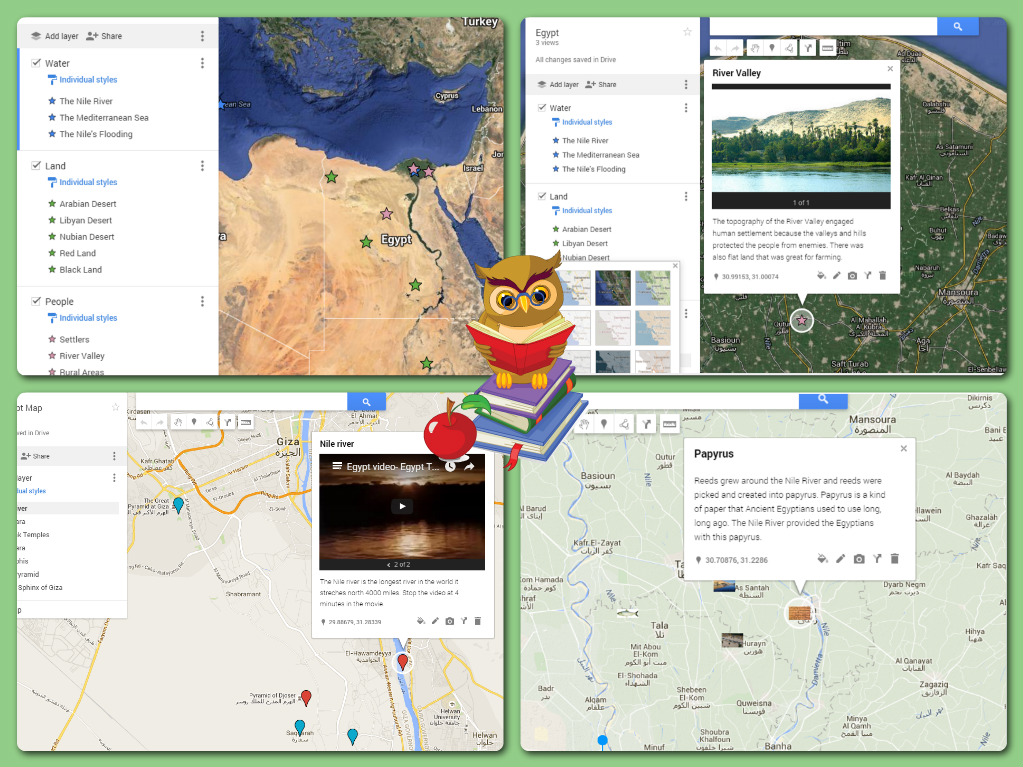
I was so happy with the results of the My Maps, but was more excited by the discussion it allowed us to have as they worked in class. After clicking on the satellite view, students were able to see how drastically the Nile affects vegetation and thus life in Egypt. They used the measurement tools, without my prompting, to consider the distances between various ancient cities and the transportation that was necessary. And most importantly, they wanted (and at times competed) to create more connections, pins, and layers to strengthen their argument. It was fantastic to see.
I have attached a few screen shots of our final products. Google My Maps invites so many diverse uses. I can’t wait to use it from the start of September next year, where my goal is to have the students create an interactive map of all the units we study in one My Map. The possibilities with such a tool seem endless.
Ready to start exploring Google Maps? Check out this great resource: https://goo.gl/dVu1vi and reach out to the Teacher Resource Specialist for Technology in your building for support.
Thursday, February 11, 2016
Friday, January 29, 2016
Using Symbaloo to Share Resources & Differentiate Instruction
This post is shared with you by John Cochrane, 6th grade Social Studies teacher at Grover Middle School
Symbaloo describes itself as a “visual bookmarking tool,” with the accent on visual. So why do you need another bookmarking tool when you already have one? Part of the answer is the visual component and the other major component for me is the shareable nature of Symbaloo. My use of Symbaloo as described here does not take full advantage of Symbaloo’s functionality, but I use it for a very specific purpose that it accomplishes quite nicely. If my brief description arouses interest, go to the Symbaloo website http://en.support.symbaloo.com/knowledgebase/articles/229587-why-use-symbaloo for a more in depth view.
Symbaloo is perhaps the major resource for my sixth grade curriculum. Given the limited usefulness and quality of our textbook and the disappearance of the Calliope database, we need to use outside sources to make the ancient world come alive. Just as importantly, we need a portal to this information that can be easily built, shared and updated. Symbaloo makes all this happen in a simple, efficient and reliable manner. Since most material on the ancient world is written at a level far beyond most sixth graders, Symbaloo also provides a connection to material that hits the students “between-the-eyes.” No more searching for that needle in a haystack.
Symbaloo is also a big contributor to my differentiation methods. There is space to combine a variety of topics, both text and video, while targeting learners at various interest and reading levels. Students can often use the posted websites (i.e. the British Museum) to branch off from the specific topic and go where their curiosity leads them.
The “tile” portals can be colored coded or use the source logos (or a combination of the two) to make the various topics and media immediately recognizable. The students like Symbaloo so much that they often recommend sites they have discovered to be added. I’ve never experienced this phenomenon before, and the Symbaloo’s ease of use makes updating a disseminating a revised version a really quick fix. These collections are especially useful for creating standard and enrichment “matrix” type assignments that students can really enjoy.
Posted below is a recent version of one of my Mesopotamia oriented screens

If you would like to explore using Symbaloo in your classroom, reach out to the Teacher Resource Specialist for Technology in your building.
Thursday, January 28, 2016
Thursday, January 14, 2016
Thursday, January 7, 2016
Wednesday, January 6, 2016
A Periodic Table of Education Technology from Debbie Cohen via the Daily Genius
Debbie Cohen, PRISM teacher at Grover Middle School, recently shared this resource of favorite educational technology tools from the Daily Genius with me. It's an awesome collection of educational tools, organized into categories such as:

For more information about Daily Genius and how they came up with this particular resource, visit this page: http://dailygenius.com/periodic-table/
Do you think you and your students could make a similar list with your favorite resources? Reach out to your teacher resource specialist for technology to collaborate on building your own customized educational technology catalog of resources!
We'd love to share them here on our WWP learning blog!
~Melissa
- Social Networks
- Online Learning
- Multimedia
- Coding
- Classroom Tech
- Hardware
- Education Conferences

The constantly updated image can be found at http://dailygenius.com/periodic-table.
Also, you can visit a "clickable" version of the table, made by Kathy Schrock, where you can hover over any of the resources and click a link that will take you directly to the resource's main web page, here: http://www.schrockguide.net/uploads/3/9/2/2/392267/edtech_periodic-table.pdf.
If you are already using one of the tools in a particular category, you might like to see what other, similar resources are available. Or, if you are in need of a resource in a particular category, this table provides you with several options so that you can choose the one that will best fit your needs. You might even want to share the resource directly with students, especially if they are specifically looking for study aides (green section) or coding resources (yellow section).
For more information about Daily Genius and how they came up with this particular resource, visit this page: http://dailygenius.com/periodic-table/
________________________________________________________
Do you think you and your students could make a similar list with your favorite resources? Reach out to your teacher resource specialist for technology to collaborate on building your own customized educational technology catalog of resources!
We'd love to share them here on our WWP learning blog!
~Melissa
Monday, January 4, 2016
On Being Connected and PBS LearningMedia from Sue Totaro
This post is from Sue Totaro, Supervisor of Curriculum and Instruction
_____________________________________________________
 |
| image credit:Milken Educator Awards |
I sometimes, however, fall into the black hole of the internet, jumping from site to site, search to search, looking for the best video, best article, or best app. What I’ve found is that the more I am connected to great sites that compile and integrate digital resources for teachers, the less time I spend blindly searching.
Two resources I happened upon over winter break are designed to both connect teachers and share lesson ideas. PBS LearningMedia© allows PreK-12 teachers to search their videos, lessons, and links by grade, subject, resource type, and language for digital media that can be incorporated into classrooms. Many of the links include lesson summaries and an overview, grade level, suggested time, links to media resources and materials, as well as the activities and assessments, and all of the resources are aligned to standards. The site also has “Productivity Tools for Teachers” and a free PBS Student App for the iPad.
In addition to the site, PBS LearningMedia© has an active Twitter feed @PBSLrnMedia with over 12K followers. The tweets have links to the site’s collection of 100,000 free resources for teachers. What really interested me about the feed and site was the opportunity for teachers to be recognized as “Digital Innovators.”
In addition to the site, PBS LearningMedia© has an active Twitter feed @PBSLrnMedia with over 12K followers. The tweets have links to the site’s collection of 100,000 free resources for teachers. What really interested me about the feed and site was the opportunity for teachers to be recognized as “Digital Innovators.”
The program recognizes educators nationwide who are
incorporating digital media in classrooms and serving as leaders in educational technology. According to the site, “Over the course of the 2016/2017 school year, PBS LearningMedia Digital Innovators will be part of a robust professional learning community that will foster new ways of thinking, while leading the way in using technology to drive student achievement. 54 applicants, one from each US state and territory will be designated as Lead PBS LearningMedia Digital Innovators and will also receive a three day, all-expense paid trip to Denver, CO to participate in the PBS LearningMedia Digital Innovators Summit and the prestigious ISTE Conference from June 25-27, 2016. Plus, each Lead PBS Digital Innovator will receive a Samsung Galaxy® tablet.”
 |
| image credit: PBS LearningMedia |
The application period for the 2016 PBS LearningMedia Digital Innovators program is open and anyone interested should apply by February 8.
~Sue Totaro
@SusanTotaro
@SusanTotaro
Friday, December 18, 2015
Tuesday, December 8, 2015
Timely Feedback When Submitting a Google Form in Eighth Grade
This week we have a guest post from Lisa Sacca, 8th Grade Science at CMS.
For the past month or so I've been using Google Form "Checkpoints" with the formMule add-on that Dan Gallagher showed me. He created the first one after I expressed interest in getting and recording feedback electronically. If you are interested in form-atively assessing your students, having the data compiled in one place, and giving the students immediate feedback (regardless of where they are), then this is perfect.
For the past month or so I've been using Google Form "Checkpoints" with the formMule add-on that Dan Gallagher showed me. He created the first one after I expressed interest in getting and recording feedback electronically. If you are interested in form-atively assessing your students, having the data compiled in one place, and giving the students immediate feedback (regardless of where they are), then this is perfect.
In science, we are currently in the chemistry unit and I tried this several times with recognizing types of reactions, counting atoms, and balancing reactions and have continued to use it for pH. All you need to do is write one big idea question and push it out in a Google form. In the results sheet there is the formMule formula that sends the students an immediate email based on their response -- "Congrats" or maybe "Unfortunately your answer was not correct, here is some extra practice". In those emails you can also include your own links. I like to make my own screencasts and send those links. But I have also taken a picture of my work and hyperlinked it, used an online video, or even a link to a website or web page.
It is a great way for the students to know "ok, this is what I should be able to do now" and they know right away and can get the answer or help right away.
I have asked my students how they feel about it and here are some of the things they have said:
"I keep submitting because I love the 'CORRECT' email"
"I keep trying until I get it right"
"I like knowing as soon as I hit submit"
"I do these from my phone, it's easier"
and finally the best one...
"I like that only me and the teacher know how I did on it and I don't have to ask about it in front of the whole class"
I definitely recommend you try this!!!
Friday, November 13, 2015
Storyboarding in Seventh Grade Language Arts: A Google Drawing Exploration!
To be frank, the 1-to-1 initiative intimidated me. Even as a third-year teacher, I couldn’t stop thinking about how I could possibly change from the way I was “used” to teaching. How could I consistently incorporate this much amazing technology in the classroom? How would I get there? How could I use these devices in the best way possible?
I started thinking about my visual learners and the goals I wanted my kids to reach. I wanted them to feel like close reading was a natural practice as opposed to something they “had” to do. It wasn’t enough to model and practice close reading on paper. I needed to do something else.
The New York Times Ed Blog opened a lot of doors for me and inspired me to try Storyboarding as a way to practice Close Reading. Students were placed into three groups with a different short story per group. The focus of the lesson was using a Storyboard to gather relevant evidence as well as choose visuals to increase their understanding of each piece of evidence. In the day’s experience, I found that my students felt more empowered in terms of understanding their stories, and their inferences and claims were so much stronger.
Using Google Drawing, students were able to develop their Storyboards. They could share their work with partners within the classroom and participate in a gallery walk where they had the opportunity to see other students work and how they incorporated visuals into their analytical reading work. It was truly an awesome experience and gave kids the opportunity to interact with texts in a more creative way!
 |
| My Model |
 |
| Students participating in our Gallery Walk |
 |
| Students were given the option of using paper storyboards over the Chromebook; Chromebooks were used most often! |
 |
| A student’s work on the short story “The Stolen Party” |
 |
A student’s work on the short story “Thirteen and a Half”
|
Thursday, October 22, 2015
Monday, September 28, 2015
Let's #CelebrateMonday!
Hi everyone,
let’s #CelebrateMonday!

The idea behind #CelebrateMonday is to kick off the week by celebrating something positive. Teachers, students, and parents are excited about coming back to school after the weekend to share out the exciting things that they are doing. This huge movement of positivity was started by Sean Gaillard, a high school principal in North Carolina, with a simple hashtag, #CelebrateMonday.
Here’s how it works: just tweet out some of the
positive things happening in your school with the hashtag #CelebrateMonday.
That’s it. J
In your tweets, you can showcase student work, give a
shout-out to a colleague, or show some team spirit!
This link will take you to some of the positive things that
people are sharing.
Twitter is an amazing place to find educational resources
and connect with educators from all over the world. Many members of our #WWPRSD
community are on Twitter. You can find a list of WWPRSD educators using twitter
here.
(If you would like help getting started on Twitter, speak to the technology resource specialist working with your building.)
Have a great Monday!
Subscribe to:
Posts (Atom)