Showing posts with label Google Forms. Show all posts
Showing posts with label Google Forms. Show all posts
Friday, September 16, 2016

Thursday, January 7, 2016
Tuesday, December 8, 2015
Timely Feedback When Submitting a Google Form in Eighth Grade
This week we have a guest post from Lisa Sacca, 8th Grade Science at CMS.
For the past month or so I've been using Google Form "Checkpoints" with the formMule add-on that Dan Gallagher showed me. He created the first one after I expressed interest in getting and recording feedback electronically. If you are interested in form-atively assessing your students, having the data compiled in one place, and giving the students immediate feedback (regardless of where they are), then this is perfect.
For the past month or so I've been using Google Form "Checkpoints" with the formMule add-on that Dan Gallagher showed me. He created the first one after I expressed interest in getting and recording feedback electronically. If you are interested in form-atively assessing your students, having the data compiled in one place, and giving the students immediate feedback (regardless of where they are), then this is perfect.
In science, we are currently in the chemistry unit and I tried this several times with recognizing types of reactions, counting atoms, and balancing reactions and have continued to use it for pH. All you need to do is write one big idea question and push it out in a Google form. In the results sheet there is the formMule formula that sends the students an immediate email based on their response -- "Congrats" or maybe "Unfortunately your answer was not correct, here is some extra practice". In those emails you can also include your own links. I like to make my own screencasts and send those links. But I have also taken a picture of my work and hyperlinked it, used an online video, or even a link to a website or web page.
It is a great way for the students to know "ok, this is what I should be able to do now" and they know right away and can get the answer or help right away.
I have asked my students how they feel about it and here are some of the things they have said:
"I keep submitting because I love the 'CORRECT' email"
"I keep trying until I get it right"
"I like knowing as soon as I hit submit"
"I do these from my phone, it's easier"
and finally the best one...
"I like that only me and the teacher know how I did on it and I don't have to ask about it in front of the whole class"
I definitely recommend you try this!!!
Tuesday, December 23, 2014
2014 at Village
Dear Village Friends,
It’s during this time of the year that I like to look back and reflect on all that has transpired over the course of the previous 12 months. It’s also the time of year that I make plans for next 365 days. While I did not have a full 12 months with you here a Village, there is so much we have accomplished together. Thank you for learning alongside me and teaching me what I didn’t know (one of my favorite sayings in my position is, “You don’t know what you don’t know.”); I have learned a lot from and with you. Here are some things we accomplished in the four short months (five, if we include the summer...and I do!) we had together in 2014:

|
|
Here’s what we can look forward to in 2015:
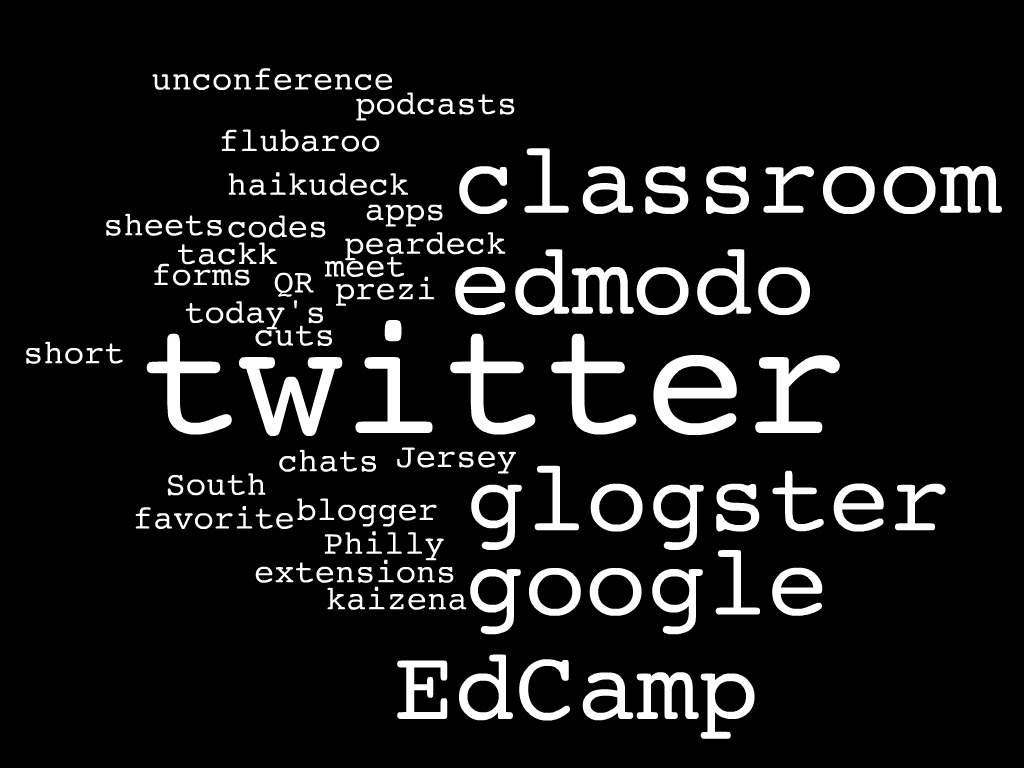
I look forward to continuing our work together in the New Year, whether it be a visit to your flex, a 1 on 1 planning meeting during prep, a weekly standing appointment, co-teaching, modeling, etc.
Stacey
Monday, December 8, 2014
Google Form to Promote Good Student Choices
What are my students doing on their Chromebooks
(or other devices)?
When a student has free choice time in class, we know that there are many wonderful things he or she can do with a Chromebook (or any connected device). Students and teachers may not always see eye to eye about what is an appropriate use of the technology in the classroom, so we want to help our students learn to make good choices about what to do during unstructured time. It is also helpful for us to better understand why they make the choices that they do.
A simple accountability can be used as a formative assessment measure for when students have free choice during class -- to remind them that what they are doing on their Chromebooks during unstructured time is important and should be academic. Teachers can have students fill out the form at the completion of the free choice time, when transitioning back to lesson activities or at the end of the class period.
The following is a sample form that can be linked or embedded in a teacher's webpage or shared with students to add to their bookmarks. Forms can be customized to include choices given in individual classes and collect information that is meaningful to each individual teacher.
What do I do with the data I collect?
The information filled out in the form will be collected in a Google Spreadsheet. From there, teachers can track and trend student choices as well as read their explanations for why the students are making those choices. This information can become the foundation for future whole group, small group, or individual lessons in class. It can also lead to meaningful conversations about what kinds of activities students should be choosing in class.
Forms can also be shared across teams or grade levels to compare student choice activities in different classes. Teachers may encourage students to try different activities when they have the choice, or may learn of new sites, apps, and extensions through what the students share in the form.
If you would like help creating a form like the one above or implementing this into your classroom routine, please let us know.
If you use already use a Google Form for a reason similar to the one in this post, please share your experiences in the comments section below.
Monday, November 17, 2014
Using Google Forms to Collect Digital Assignments
 Teachers are constantly assessing these days.
Whether it be formative or summative assessments, we are collecting feedback from our students to monitor their engagement, participation, and progress. Many of these assessments are now digital, and a simple Google Form makes all the difference in the world when managing the collection, review, and scoring of these assessments.
WHY USE A GOOGLE FORM:
- Students submit the assignment through the form. This helps instill a sense of responsibility in the student (as opposed to simply granting a teacher access to the documents).
- The forms can be created quickly. Just few minutes of setup time will save hours searching for and opening assignments.
- The forms can be customized. Each teacher can collect the information in the manner her or she prefers.
- The information is collected in a Google Spreadsheet. This allows the teacher the option to record grades and write notes directly alongside the assignment. From there, the teacher can sort the sheet by grade or note in order to pull small groups for conferences or to keep track of assessments to use as future student models of work. Also, the spreadsheets can be shared between team and co-teachers.
- Any assignment with a URL can be collected this way. This is great for collecting and keeping track of Google Docs, Slides, Sheets, videos, Symbaloo Webmixes, Padlets, and more!
AN EXAMPLE SUBMISSION FORM SPREADSHEET:
Later, after several assessments have been collected, the responses collected in the spreadsheet can be sorted by student. This data can be used during student conferences, and with conferences with the students' parents. The information can be shared with students so that they can include it in their own portfolios to reflect on their progress.
If you have been using Google Forms to collect assignments, or have any questions or suggestions about using this application, please leave a comment below.
~Melissa
(This post was originally published on TODAY IN SCHOOL.)
Tuesday, October 14, 2014
Monday, September 29, 2014
Modifying Google Forms
This past week, I read a post from Mr. Clay Reisler (iPaddiction) on creating custom banners and password protecting forms. This inspired me to tinker around with Google Forms. I love having the ability to customize, so naturally, having the ability to have my own banner across the top of a Form is an added bonus, visually speaking. Password protecting a form is an easy way to make sure no one fills out, let's say my mileage form, other than me. I love to have a form 'Add to Home Screen' on an iPad, using Safari (no other web browsers on an iPad support this), so I can quickly submit data. Here is an example below:
(Password is Password)
Here is how I set a password to a Google Form:
Recently, I worked with a teacher who wanted to be able to have a Google Form for checking off student homework completion on his iPad ('Add to Home Screen'). We designed the form to have two questions for each student; first, a 'checkboxes' question of all the potential homework subjects. Second question is a 'paragraph' style kind, where any notes could be typed in such as if a student didn't do their math homework the teacher could state exactly what was the missed assignment. Now he can go into his spreadsheet, since each submission is date stamped, and then sort by question to see each time a particular student hasn't completed their homework.
Last year, I started to reach out, through Google Forms, for feedback & suggestions. Every week I send out a Free Friday 'App'etizer email with an app suggestion. I also included a link to a recommendation Form where teachers could submit an app which they enjoy using. After every morning share, I send out a follow-up email with further information, a digital copy of their sign-in sheet for their records, and a link to a feedback Form on how helpful my professional development session was for them. Both of these Forms get sent out at different times throughout the school year and I didn't want to have to constantly check the Google Sheet, so setting up a notification email when something changes has been awesome! From within a Google Sheet, I go to 'Tools', 'Notification rules...', on the pop-up choose the settings you would like and click save!
I hope these ideas/tips inspire you to try something new with Google Forms. If you need help, reach out to one of us for assistance, we're all in this together!
This was also posted on: A tech perspective... or something like that
(Password is Password)
Here is how I set a password to a Google Form:
Recently, I worked with a teacher who wanted to be able to have a Google Form for checking off student homework completion on his iPad ('Add to Home Screen'). We designed the form to have two questions for each student; first, a 'checkboxes' question of all the potential homework subjects. Second question is a 'paragraph' style kind, where any notes could be typed in such as if a student didn't do their math homework the teacher could state exactly what was the missed assignment. Now he can go into his spreadsheet, since each submission is date stamped, and then sort by question to see each time a particular student hasn't completed their homework.
Last year, I started to reach out, through Google Forms, for feedback & suggestions. Every week I send out a Free Friday 'App'etizer email with an app suggestion. I also included a link to a recommendation Form where teachers could submit an app which they enjoy using. After every morning share, I send out a follow-up email with further information, a digital copy of their sign-in sheet for their records, and a link to a feedback Form on how helpful my professional development session was for them. Both of these Forms get sent out at different times throughout the school year and I didn't want to have to constantly check the Google Sheet, so setting up a notification email when something changes has been awesome! From within a Google Sheet, I go to 'Tools', 'Notification rules...', on the pop-up choose the settings you would like and click save!
I hope these ideas/tips inspire you to try something new with Google Forms. If you need help, reach out to one of us for assistance, we're all in this together!
This was also posted on: A tech perspective... or something like that
Subscribe to:
Posts (Atom)