Showing posts with label Chromebooks. Show all posts

Monday, February 15, 2016

Showcasing Learning through Google My Maps

This post is shared with you by Kaity Haley, 6th grade Social Studies teacher at Grover Middle School


I discovered  Google My Maps on my weekly Pinterest binge, and fell in love with it. As a Social Studies teacher, I was so excited to see how my students could use it in the classroom. Our 6th grade class was entering our unit on Ancient Egypt when I introduced the tool to my classroom. I started out with a quick tutorial video. It was created by a high school teacher to guide his students through a particular project, but demonstrated the awesome tools that My Maps offers, in a student friendly manner. Before beginning our My Map assignment all students viewed the video for homework.

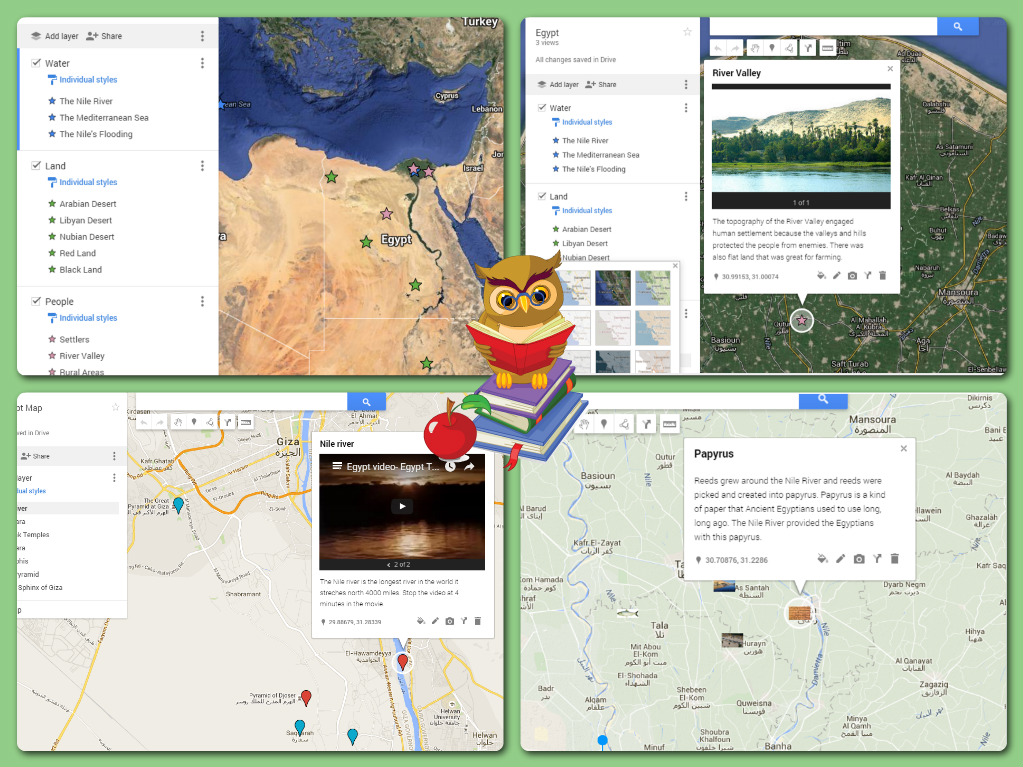
Students began the My Map assignment by conducting research on Egyptian geography. They also explored culture and life in Egypt. After conducting research through guided materials and leveled readings,  the students had a variety of information. They then identified common categories and trends with this information. Students were then presented with the following question: How did geography and climate impact life in Egypt? However, instead of using their research to construct a paragraph response, they utilized their learning to answer the question in a My Map. Their task was to answer the question using the visual map instead of the traditional paragraph.

Students spent 2 days in class, then, creating their maps. They were encouraged to translate their categories from the research in to different layers on their My Map (reflecting on the organizational skills we study in writing). There were also invited to use the images and videos from their research to add more visual elements to their maps. In general their goal was to answer our research question in this new medium...and my students did an excellent job.

I was so happy with the results of the My Maps, but was more excited by the discussion it allowed us to have as they worked in class. After clicking on the satellite view, students were able to see how drastically the Nile affects vegetation and thus life in Egypt. They used the measurement tools, without my prompting, to consider the distances between various ancient cities and the transportation that was necessary. And most importantly, they wanted (and at times competed) to create more connections, pins, and layers to strengthen their argument. It was fantastic to see.

I have attached a few screen shots of our final products. Google My Maps invites so many diverse uses. I can’t wait to use it from the start of September next year, where my goal is to have the students create an interactive map of all the units we study in one My Map. The possibilities with such a tool seem endless.
pizap.com14553094721711.jpg


Ready to start exploring Google Maps? Check out this great resource: https://goo.gl/dVu1vi and reach out to the Teacher Resource Specialist for Technology in your building for support.


Ready for your own Pinterest binge? Check out these boards: https://www.pinterest.com/msitech/  

Tuesday, December 8, 2015

Timely Feedback When Submitting a Google Form in Eighth Grade

This week we have a guest post from Lisa Sacca, 8th Grade Science at CMS. 

     For the past month or so I've been using Google Form "Checkpoints" with the formMule add-on that Dan Gallagher showed me.  He created the first one after I expressed interest in getting and recording feedback electronically. If you are interested in form-atively assessing your students, having the data compiled in one place, and giving the students immediate feedback (regardless of where they are), then this is perfect.  

     In science, we are currently in the chemistry unit and I tried this several times with recognizing types of reactions, counting atoms, and balancing reactions and have continued to use it for pH.  All you need to do is write one big idea question and push it out in a Google form.  In the results sheet there is the formMule formula that sends the students an immediate email based on their response -- "Congrats" or maybe "Unfortunately your answer was not correct, here is some extra practice".  In those emails you can also include your own links.  I like to make my own screencasts and send those links.  But I have also taken a picture of my work and hyperlinked it, used an online video, or even a link to a website or web page.

     It is a great way for the students to know "ok, this is what I should be able to do now" and they know right away and can get the answer or help right away.

I have asked my students how they feel about it and here are some of the things they have said:

"I keep submitting because I love the 'CORRECT' email"

"I keep trying until I get it right"

"I like knowing as soon as I hit submit"

"I do these from my phone, it's easier"

and finally the best one...
"I like that only me and the teacher know how I did on it and I don't have to ask about it in front of the whole class"

I definitely recommend you try this!!!

Friday, November 13, 2015

Storyboarding in Seventh Grade Language Arts: A Google Drawing Exploration!

This week we have a guest post from Brittany Rivera, 7th Grade IRLA at CMS. 


To be frank, the 1-to-1 initiative intimidated me. Even as a third-year teacher, I couldn’t stop thinking about how I could possibly change from the way I was “used” to teaching. How could I consistently incorporate this much amazing technology in the classroom? How would I get there? How could I use these devices in the best way possible?


I started thinking about my visual learners and the goals I wanted my kids to reach. I wanted them to feel like close reading was a natural practice as opposed to something they “had” to do. It wasn’t enough to model and practice close reading on paper. I needed to do something else.


The New York Times Ed Blog opened a lot of doors for me and inspired me to try Storyboarding as a way to practice Close Reading. Students were placed into three groups with a different short story per group. The focus of the lesson was using a Storyboard to gather relevant evidence as well as choose visuals to increase their understanding of each piece of evidence. In the day’s experience, I found that my students felt more empowered in terms of understanding their stories, and their inferences and claims were so much stronger.

Using Google Drawing, students were able to develop their Storyboards. They could share their work with partners within the classroom and participate in a gallery walk where they had the opportunity to see other students work and how they incorporated visuals into their analytical reading work.  It was truly an awesome experience and gave kids the opportunity to interact with texts in a more creative way!

My Model
Students participating in our Gallery Walk
Students were given the option of using paper storyboards over the Chromebook; Chromebooks were used most often!

A student’s work on the short story “The Stolen Party”


A student’s work on the short story “Thirteen and a Half”

Monday, September 28, 2015

Google Classroom's Integration with Calendar

How Google Classroom Enhanced a Math Lesson

This past week I had the opportunity to participate in a 6th grade math lesson.  Both Linda Scanlan & Taylor Sternotti planned and carried out the lesson via Google Classroom.  All three of the 'create' functions on the classroom's Stream were utilized.  They first 'announced' the lesson by posting an invitation.
During the lesson, they posted an 'assignment' using Google Presentation for the students to plan out and solve the questions of date, place, and host.
Finally, the lesson utilized the 'create question' function by having the students submit their answers to the invite.
Here's what Linda & Taylor said about their lesson:

"Lesson title: Math Mystery Ball
First, we sent an invitation prior to the lesson to all students by sending an 'announcement' through Google Classroom with the invitation attached. Students were intrigued by the invitation. We sent a Google slide presentation with information students needed to complete the activity. The learning objective was for students to be able to reason, abstractly and quantitatively, to solve real world problems using the strategy 'Use Logical Reasoning'. Students needed to solve three logic problems to correctly solve the mystery of when, where and who was hosting the party. Google Classroom provided students with the file on the Chromebook, therefore, they were able to work at their own pace and provided diagrams for visual learners. We sent a question to all students, through Google Classroom, that asked the three details of the Math Mystery Ball. When students solved all three logic problems, they then submitted answers to the question. As a formative assessment, the teachers were able to see students’ responses and comment on each student response in real time. This provided immediate feedback for students to move on to the next activity in the classroom or revise incorrect answers. Students were actively engaged in the lesson and had felt a need to solve the problem correctly. Thanks to Liz Keller for providing the activity."

Friday, September 18, 2015

An Issue w/ Google Classroom's 'Turn In' Feature - FIX

I had a couple of teachers, recently, bring an issue to my attention about the 'Turn In' feature for assignments in Google Classroom.  The student would try to 'Turn In' an assignment and they would get an error message:

Here is a resource I put together to assist them on how to fix this issue themselves:


Friday, August 21, 2015

Reflections on a year of 1:1 in 6th grade

In this post, some of our 6th grade teachers reflect on their first year in a 1:1 setting. 

Please feel free to respond to their reflections and continue the conversation in the comments section below. 


------------------------------------------------------------------

"In my 6th grade Science class this year, the chrome-books enabled us to try some new projects using technology.  Students observe the life cycles of the Cabbage White Butterfly and the Wisconsin Fast plant each year. This year the chrome-books were a great tool in helping to do a long term project over a six week period. Students took pictures of each of the developmental stages of these organisms throughout  their life cycles. They also recorded data and observations on the chrome-book. The finished product was a Google presentation of the life cycle stages of each organism and examples of how they are independent upon each other in different periods of their development. The students loved using their chrome-books to take pictures and record data about these living creatures as they grew in the classroom!"
Gene Buck, Science Teacher
Thomas Grover Middle School


"As a first year teacher, the idea of having CBs in my room was overwhelming. On top of learning a new school, new students, and a new lifestyle, I was encouraged to learn about a technology I had little prior knowledge of. During my interview process, I quickly faced this reality while participating in a demo lesson. When I asked students to design an irrigation system for the Nile River, they went right to their CBs. I knew then, that my thoughts of teaching and engagement would have to change.

This year the 1:1 initiative brought challenges and successes to my teaching. Though I cannot point to one particular app or procedure that worked well, as a whole the CBs allowed my students to interact with history outside of my room, without leaving their desks. Students were more confident and curious when the CB was utilized; a wealth of information was at their fingertips. Research assignments were more authentic because students were not just learning skills meant for a library- the skills could and would be used in everything they examined, each time they logged on. The CBs also allowed many of my students to have a voice in the room. Backchannels, video presentations, and blog posts allowed my quietest students to become active participants in daily activities. Now in June, these students are more confident both online, and in person.

Next year I hope to continue to explore uses for the CB. The 1:1 initiative has meant a lot of professional development goes on during my down time, as my chronic “pinning” proves evidence of. The students are always looking for new things to learn on their devices, and I am always looking for new ways to direct their learning. As technology continues to grow and new sites and apps are developed daily, I will continue to look to my students, colleagues and online communities for more. More than continuing to utilize a particular website, extension, or procedure, I would like to continue to make the time for earnest exploration and professional development."

Kaity Haley, Social Studies Teacher
Thomas R. Grover Middle School


------------------------------------------------------------------

"A course that starts with the Big Bang and extends into the Common Era offers myriad opportunities to differentiate and give students freedom to select from a wide menu of topics to pursue. Symbaloo provides teachers with the ability to present many options on a single screen, allowing students to safely pursue their interests and even suggest websites to consider adding. The students love to share their discoveries. Symbaloo is colorful and user friendly, making it a delightful destination. Symbaloo has become a favorite of several of the foreign language teacher here at Grover, too. They use this software in the classroom as a key tool in their “carts.”


Monday, June 8, 2015

Are You App Smashing?


FullSizeRender-2
New devices, like the Apple Watch, bring even more apps into the picture!
THERE’S AN APP FOR THAT
On their phones, tablets, and other devices, students today have access to some pretty amazing apps! In schools, many students are using Chrome apps and extensions on their Chromebooks and iOS and Android apps on tablets. All of these apps make it possible for students to consume,curate, and create digital information in new and exciting ways.
As various apps find their way into more and more classrooms and are used by students and teachers for longer periods of time, we are noticing that the apps are often developed with certain functions in mind, and students and teachers need to use more than one app to accomplish the types of complex learning and problem-solving tasks that we want to do. Many students and teachers, therefore, are engaging in a practice known as “app smashing.”
WHAT IS APP SMASHING?
App smashing, using more than one app in order to complete a desired task, is explained by Greg Kulowiec (@gregkulowiec) in this blog post from 2013 when he first used the term:  http://kulowiectech.blogspot.com/2013/02/app-smashing-part-i.html. Recently, Vicki Davis (@coolcatteacher) interviewed Kulowiec for her radio program, Every Classroom Matters, and in the interview they discuss the origin of the term and examples of app smashing, and how more and more teachers are exploring the options of using multiple apps together: http://goo.gl/gZyogc.
I like to think that the practice of app smashing is a lot like building a house. We don’t just use a hammer to build a house. We don’t just use a saw. We don’t just use one nail. Many different tools are evaluated so that the best ones are selected and then used in conjunction with one another in order to build a house. This is absolutely true in education as well. We can never rely entirely on just one resource, one application, or one piece of equipment. Instead, we plan instruction around using the most appropriate tools we have available to us, in the right combinations, in order to complete the tasks we set out to do. Just like building a house.
#YOUVEBEENAPPSMASHED
Seeing examples of content that others have created is a great way to learn about new apps, get inspired, and try new things, and students and teachers who have already combined multiple apps are happy to share out their work. Sunny Richardson (@SunnyJune77), Mccright (@mccright), and Dan Gallagher (@Gallagher_Techlargehave collaborated on a special challenge to get other educators app smashing and to share out their creations called “You’ve Been AppSmashed!”
“This challenge is designed around 5 weeks. Each week you will be creating a final product, sometimes you will be able to choose the apps, other times the apps will be chosen by chance. At the end of the challenge, each successful finisher will receive a badge.”
Information about each of the individual challenges and how to submit the final creations is available here: https://tackk.com/audsuu. More information and examples of final products can be found by following the Twitter hashtag:#YOUVEBEENAPPSMASHED.
Consider yourself officially app smashed!
(This post originally appeared on Today In School as "We App Smash."

Wednesday, May 20, 2015

Mystery Hangouts in Ms. Rosenberg's 5th Grade Class - A Student Perspective

Back in the late fall Ms. Annie Rosenberg (@OMinEdu) approached me with an idea-she wanted to host a Mystery Skype or Mystery Google Hangout (GHO) with her 5th grade students. Through careful planning and facilitation, Ms. Rosenberg's 5th graders have had several Mystery GHOs across the US and one with an international school in Ghana! I have enjoyed working with this class and was excited when some of the students wrote about their experience. Below is the article they wrote about their year of Mystery GHOs and a video they created with their amazing teacher. 

Mystery Hangouts
By: Jackie, Megan, Parmida and Sid
What is a Mystery Hangout?
      A mystery hangout is where two classes in the world connect using Google Hangout. Each class guesses where the other class is by asking questions. They can only use yes or no questions. If we had time we would figure out the city of the other class we are doing a Mystery Google Hangout with.
      After we finish our actual hangout, we talk about what we did well and what places we can improve upon. We also share facts about our state, town and school.

Jobs That We Have
      For this activity, we have eight kinds of jobs. There are greeters, recorders, think tanks, runners, inquirers and lastly the reporters.
      First the greeters, the people who go on the camera, greet the other class and fill in jokes on research time. The recorders are people who write down the questions that have been asked by the inquirers and the people in the other class.
      Think tanks use the clues to find where the other class is. The runners are the people who transport the ideas and the plans from think tanks to inquirers to greeters. The inquirers are people who uses facts about the place we think the other class is in and make yes or no questions out of them, they also answer the other classes questions.
      Finally, the reporters take videos, pictures and jot notes about what is happening. One of the reporters also tweet on Twitter about the mystery hangout on our class account.   
Places We Have Traveled To
We’ve had eight mystery hangouts so far:
  • Plainsboro, New Jersey, USA
  • Burke, Virginia, USA
  • Kingwood, Texas, USA
  • Portland, Oregon, USA
  • Limerick, Maine, USA
  • Kansas City, Missouri, USA
  • Fort Wayne, Indiana, USA
  • Ghana, Africa

What Can You Learn From Mystery Hangouts
    Mystery hangouts help us with the 21st century competencies and encourage us to be effective communicators and information literate researchers. Through communicating with other classes, we learn to speak clearly and with good respect, and we strengthen our ability to be collaborative team members by helping our groups and working together to find out the other classes’ locations. We also learn how to be literate researchers by using the internet and other sources to solve problems and researching.
      Mystery hangouts are a great way to learn about states and countries, and teach us to be diverse and learn about different people, places etc. Finding places on the map enhance our skills to locate states and countries, as well as identifying landmarks like the Mississippi river and the four main oceans.
      We are able to grow as students and we can open our eyes to learn about interesting places in the United States or even the whole WORLD using. This is what we call globalization, or becoming a globally aware citizen, and it will definitely help us in the future!


A big thanks  to Mrs. Lindes and Ms. Rosenberg for teaching and helping and practicing with us to make this possible.


Here is a video our class created highlighting our Mystery GHO experience.

Wednesday, February 11, 2015

A Day in the Life of 6th Grade Social Studies (Week of 2/2/15)

In 6th grade social studies classes at GMS, today's technology helps students learn about ancient civilizations.

Engaging Videos: 

To augment and enhance information learned through reading materials and photographs, 6th grade social studies teachers use sources like YouTube and Discovery Education to locate and stream videos for their students. Students benefit from the added multi-sensory dimension, of seeing and hearing the concepts through live action, that the videos provide.

Whether the videos are stories narrated by experts and referring to primary sources, reenactments, or a combination, they help students reinforce understandings of what life was like in the ancient civilization as well as how actual archaeologists and historians have preserved and restored the civilizations.

The videos lend themselves well to the work the students are doing, such as identifying themes in the disappearances of some ancient civilizations. After watching video clips, students work in partnerships to collaborate and apply their understanding of cause and effect to the information they learn in the videos.

The sixth graders discuss and debate the negative consequences that the various individual events could have had on the ancient civilizations, such as how a river changing course could impact water supply and the ability to grow crops.


BrainPOP:


With each student having his or her own Chromebook in class, BrainPOP is an excellent resource for students to review and reinforce material at their own pace.

These 6th graders can log into BrainPOP and locate videos related to the topics they are studying.

Additionally, the teachers utilize the resources provided through the site to give students ideas for taking notes and comprehension questions to ensure they understand the concepts.


QR Codes:


Using the camera on the Chromebooks, 6th graders can access QR codes in the classroom.  With a QR code reader installed, students can scan a QR code so that thedigital resource associated with it will pop up on their screen immediately.

Using QR codes in this way is helpful for keeping students curious about what they will encounter next during self-guided work, and gives them practice with the important digital skill that they will encounter outside of school as well.

QR codes can be generated and assigned to documents, presentations, websites, videos, and audio files.

If you'd like more information about QR codes in the classroom, check out these resources from Kathy Schrock:  http://www.schrockguide.net/qr-codes-in-the-classroom.html or these from Richard Byrne: http://www.freetech4teachers.com/search/label/qr%20codes#.VM-m9GjF-So.


Electronic Resources with GAFE and SMARTBoards: 


Only five months into the school year and these 6th graders are pros at navigating Google Apps for Education (GAFE).  Teachers share out electronic resources in the form of Google Documents or Presentations, and students organize and refer to them in their Drive.  To record homework and other reminders, students also utilize the Google Calendar.

Students are using GAFE to design and create their own projects like Facebook-inspired profile pages to further understand Chinese philosophers and text spreads like those found in National Geographic. Templates for these projects are shared with students by their teacher in either Docs or Slides.  

These projects give students the opportunity to learn about the ancient civilizations and transfer learning while also exploring the creation and layout of authentic nonfiction genres.


Having a SMARTBoard in the classroom also makes it possible to create digital charts (like a KWL) during class discussions or mini-lessons which can immediately be shared with students.  6th graders eagerly volunteer to write the notes on the SMARTBoard, while the teacher circulates around the room and facilitates the discussion.

After the discussion, the teacher saves the image in the SMART Notebook software, which can be incorporated into future lessons and can be shared directly with students.


IMG_4169.JPGVirtual Egypt:
As 6th grade students study the culture of ancient Egypt, modern technology helps bring the ideas to life.

Kinesthetic learning activities combined with the technology are great ways to make long ago and faraway concepts come alive. Students create projects, such as Egyptian cartouches, or wrapping a doll mummy after reviewing the process of mummification, that help them better understand the art and religion of the ancient civilizations they study and express their unique personalities.  

Sites like Virtual Egypt make it possible for students to "take a journey back in time" through viewing maps and exploring ancient civilization ruins in 360 degree video tours.  

Creating displays of student projects in the classroom and in the digital environment not only keeps these concepts familiar, but helps students to study history in terms of causes and effects.

Friday, January 30, 2015

A Day in the Life of 6th Grade Science (Week of 1/26/15)


Here’s a little look at some of the awesome things going on in the 6th grade science classes at GMS.  

Team 6T


properties of matter.JPGStudents on 6T are studying the characteristic properties of matter.  In partnerships and small groups, students travel throughout the classroom to a variety of inquiry stations.


At each station, students discuss and answer questions in order to develop theories about what they see.  As they explore the properties of matter, they apply their own understanding of volume and density to each investigation  


As true scientists do, these 6th graders also share their results and compare them with the work of others.  After each of the inquiries are completed, the partnerships and small groups enter their results in a collaborative Google Doc.  Through this shared resource, students benefit from seeing not only their own results, but the results of others as well.  This collaborative learning experience helps the students identify trends and also determine the validity of their own findings.


Team 6G and Team 6S


Students on 6G and 6S are currently learning about the plant life cycle.  


wisconsin fast plants.JPGStarting with seeds, students are working in groups and growing Wisconsin Fast Plants.  Each day of the cycle is observed and data is recorded by the group. To record the data, students are using a combination of digital resources.  


Students work together using the camera feature in the Chromebooks to take photographs of the plants and work in collaborative documents to record other data.  For example, within their Google accounts, students create and share data tables in Google Docs and slideshow presentations to showcase the plants' growth in Google Presentations.


Students on 6G are also dissecting plants.  They are taking the plants apart to get closer looks at the individual parts of a flower.  Tactile,  hands-on manipulation of the plant parts coupled with the digital note-taking in Google Drive on the Chromebooks allow for students to employ a variety of learning styles during this lesson and really understand the intricacies of the plants they are studying.


IMG_3943.JPGAdditionally, through Google Drive the teachers share copies of notes pertaining to the parts and functions of the plant parts.  

Students can access these shared resources in Drive to later compare them with their own notes, and to use as study aides as they progress through the unit.  


Team 6M


Using the workshop model of instruction, students on 6M are studying pure and composite substances.  


After a whole group mini lesson, students have the opportunity to take a closer look at actual examples of various substances that are on display in the classroom.


Through Google Drive, the teacher has shared resources for students to access, while they work independently, on explaining the process through with a pure substance is converted or manufactured into a composite substance.  As the students work, the teacher holds brief individual conferences with each student to keep track of their progress with their respective inquiries and provide them with guidance as needed.


Reflection and self-assessment through the 3-2-1 exit ticket also help students take ownership of their learning and provides valuable formative assessment that shapes the teacher's future plans.