Showing posts with label Guest Post. Show all posts

Monday, February 15, 2016

Showcasing Learning through Google My Maps

This post is shared with you by Kaity Haley, 6th grade Social Studies teacher at Grover Middle School


I discovered  Google My Maps on my weekly Pinterest binge, and fell in love with it. As a Social Studies teacher, I was so excited to see how my students could use it in the classroom. Our 6th grade class was entering our unit on Ancient Egypt when I introduced the tool to my classroom. I started out with a quick tutorial video. It was created by a high school teacher to guide his students through a particular project, but demonstrated the awesome tools that My Maps offers, in a student friendly manner. Before beginning our My Map assignment all students viewed the video for homework.

Students began the My Map assignment by conducting research on Egyptian geography. They also explored culture and life in Egypt. After conducting research through guided materials and leveled readings,  the students had a variety of information. They then identified common categories and trends with this information. Students were then presented with the following question: How did geography and climate impact life in Egypt? However, instead of using their research to construct a paragraph response, they utilized their learning to answer the question in a My Map. Their task was to answer the question using the visual map instead of the traditional paragraph.

Students spent 2 days in class, then, creating their maps. They were encouraged to translate their categories from the research in to different layers on their My Map (reflecting on the organizational skills we study in writing). There were also invited to use the images and videos from their research to add more visual elements to their maps. In general their goal was to answer our research question in this new medium...and my students did an excellent job.

I was so happy with the results of the My Maps, but was more excited by the discussion it allowed us to have as they worked in class. After clicking on the satellite view, students were able to see how drastically the Nile affects vegetation and thus life in Egypt. They used the measurement tools, without my prompting, to consider the distances between various ancient cities and the transportation that was necessary. And most importantly, they wanted (and at times competed) to create more connections, pins, and layers to strengthen their argument. It was fantastic to see.

I have attached a few screen shots of our final products. Google My Maps invites so many diverse uses. I can’t wait to use it from the start of September next year, where my goal is to have the students create an interactive map of all the units we study in one My Map. The possibilities with such a tool seem endless.
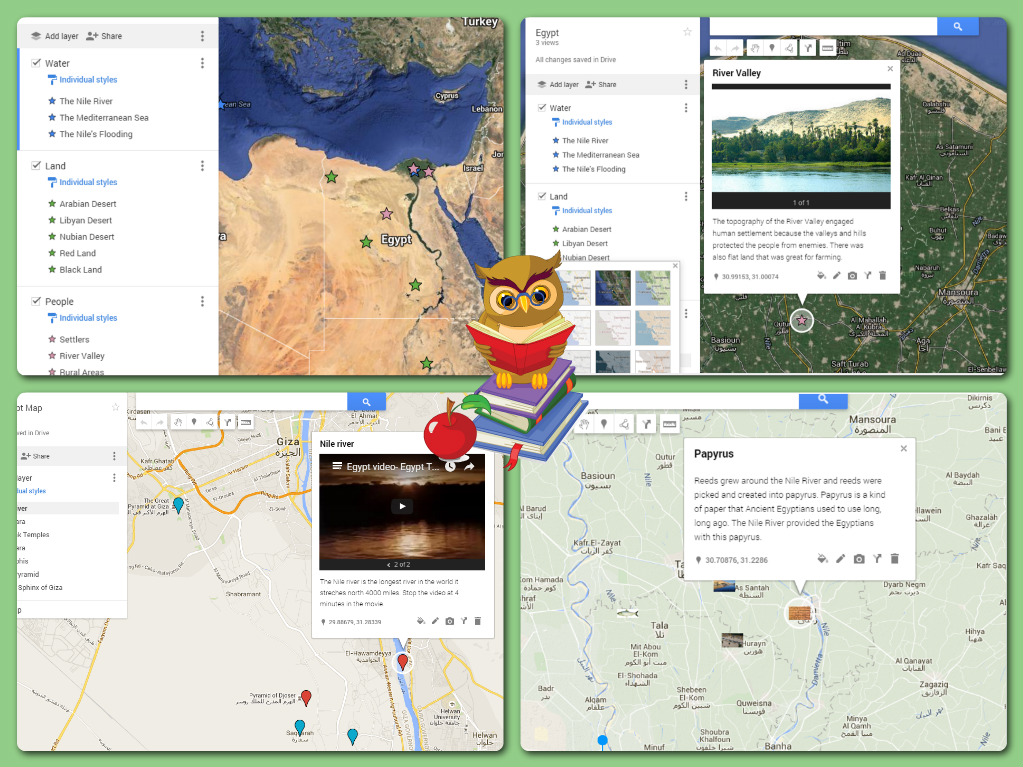
pizap.com14553094721711.jpg


Ready to start exploring Google Maps? Check out this great resource: https://goo.gl/dVu1vi and reach out to the Teacher Resource Specialist for Technology in your building for support.


Ready for your own Pinterest binge? Check out these boards: https://www.pinterest.com/msitech/  

Friday, January 29, 2016

Using Symbaloo to Share Resources & Differentiate Instruction

This post is shared with you by John Cochrane, 6th grade Social Studies teacher at Grover Middle School


Symbaloo describes itself as a “visual bookmarking tool,” with the accent on visual. So why do you need another bookmarking tool when you already have one? Part of the answer is the visual component and the other major component for me is the shareable nature of Symbaloo. My use of Symbaloo as described here does not take full advantage of Symbaloo’s functionality, but I use it for a very specific purpose that it accomplishes quite nicely. If my brief description arouses interest, go to the Symbaloo website http://en.support.symbaloo.com/knowledgebase/articles/229587-why-use-symbaloo for a more in depth view.

Symbaloo is perhaps the major resource for my sixth grade curriculum. Given the limited usefulness and quality of our textbook and the disappearance of the Calliope database, we need to use outside sources to make the ancient world come alive. Just as importantly, we need a portal to this information that can be easily built, shared and updated. Symbaloo makes all this happen in a simple, efficient and reliable manner. Since most material on the ancient world is written at a level far beyond most sixth graders, Symbaloo also provides a connection to material that hits the students “between-the-eyes.” No more searching for that needle in a haystack.

Symbaloo is also a big contributor to my differentiation methods. There is space to combine a variety of topics, both text and video, while targeting learners at various interest and reading levels. Students can often use the posted websites (i.e. the British Museum) to branch off from the specific topic and go where their curiosity leads them.

The “tile” portals can be colored coded or use the source logos (or a combination of the two) to make the various topics and media immediately recognizable. The students like Symbaloo so much that they often recommend sites they have discovered to be added. I’ve never experienced this phenomenon before, and the Symbaloo’s ease of use makes updating a disseminating a revised version a really quick fix. These collections are especially useful for creating standard and enrichment “matrix” type assignments that students can really enjoy.

Posted below is a recent version of one of my Mesopotamia oriented screens
Symbaloo webmix


If you would like to explore using Symbaloo in your classroom, reach out to the Teacher Resource Specialist for Technology in your building.

Tuesday, December 8, 2015

Google Search by Reading Level

Here's a great tip from GMS IRLA teacher Peter Shaughnessy:

Did you know that you can conduct a Google search by reading level? See below for a step by step guide, from the original Teach Thought blog post, How to Google Search by Reading Level

What's your favorite tip or trick?


How To Google Search By Reading Level
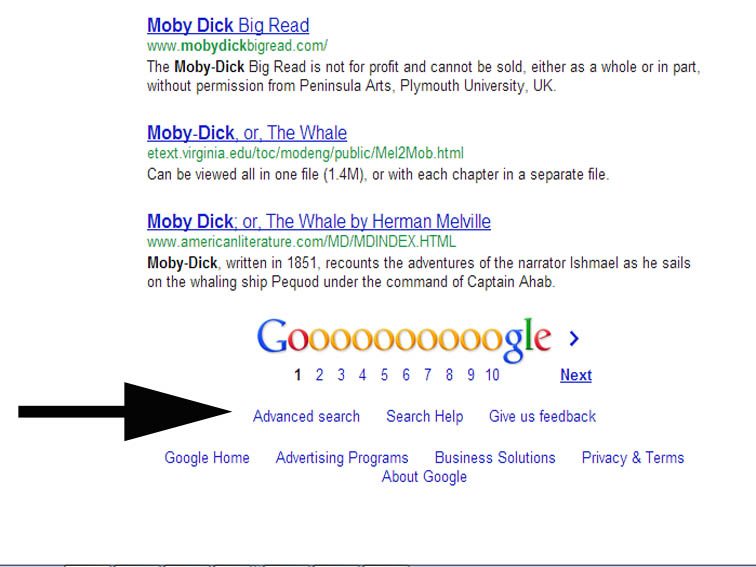
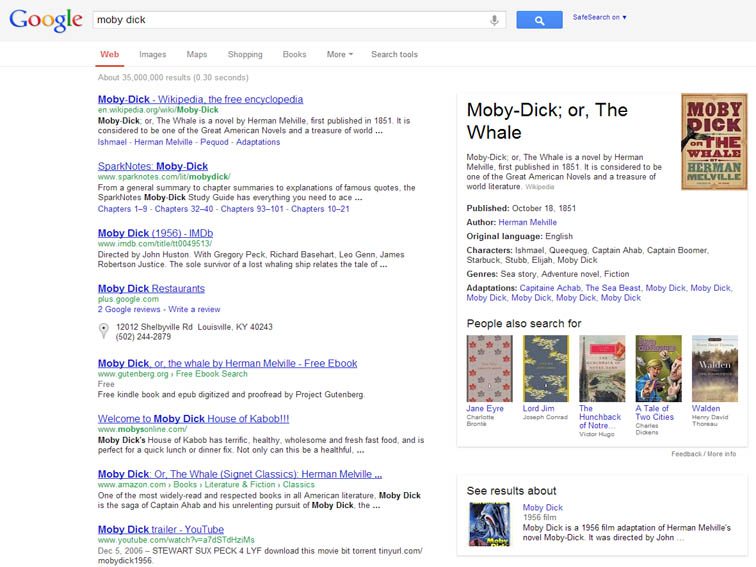
1. First, choose a term and Google it as you always have, whether you’re looking for a copyright-free version of Moby Dick, or an analysis of Moby Dick by a certain reading level.
google-search-by-reading-level
2. From the results page, scroll to the bottom and click on “Advanced Search.”
google-search-by-reading-level-4

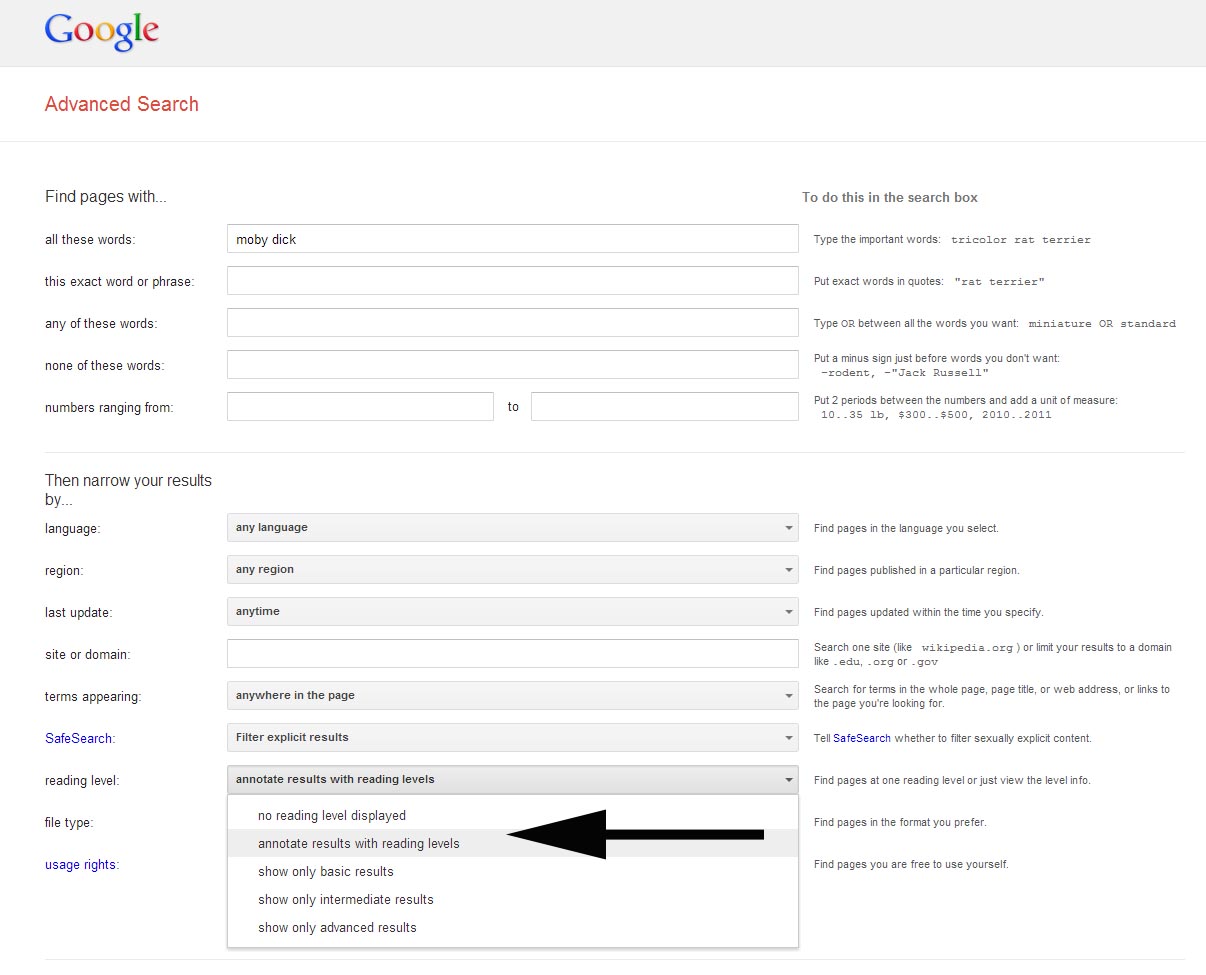
3. Within the Advanced Search options, you can choose whether or not you want to annotate the search results with reading level, or filter the search results by reading level (Basic, Intermediate, or Advanced).
google-search-by-reading-level-2
4. After you select an option, click ‘Advanced Search to display the modified search results. Next, click “Advanced Search,” scroll to the bottom, and filter results by reading level.
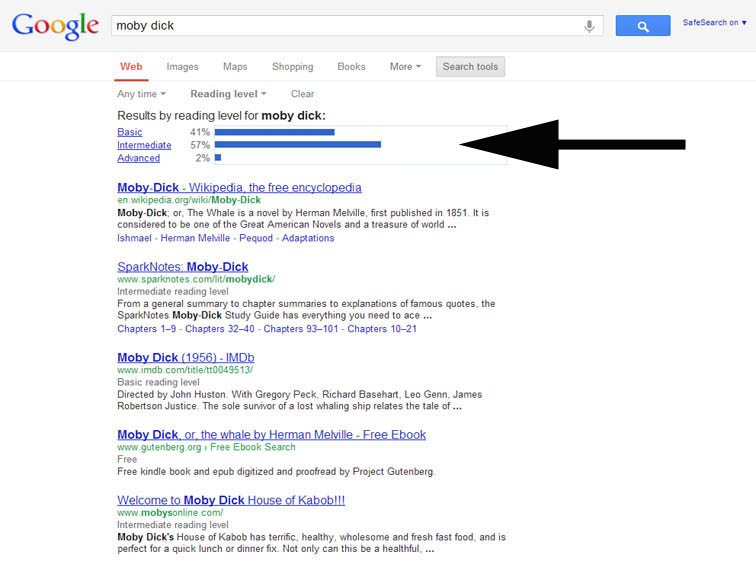
Once the filtered results show, you’ll notice a bar graph display at the top of the search results quantifying the search results by reading level (e.g., 35% Basic, 46% Intermediate, 19% Advanced). This is a nice opportunity to make some inferences about your search term or the publishing nature of media around that term as well.
google-search-by-reading-level-3

For more great ideas from Teach Thought, check out 30 Innovative Ways to Use Google in Education

Timely Feedback When Submitting a Google Form in Eighth Grade

This week we have a guest post from Lisa Sacca, 8th Grade Science at CMS. 

     For the past month or so I've been using Google Form "Checkpoints" with the formMule add-on that Dan Gallagher showed me.  He created the first one after I expressed interest in getting and recording feedback electronically. If you are interested in form-atively assessing your students, having the data compiled in one place, and giving the students immediate feedback (regardless of where they are), then this is perfect.  

     In science, we are currently in the chemistry unit and I tried this several times with recognizing types of reactions, counting atoms, and balancing reactions and have continued to use it for pH.  All you need to do is write one big idea question and push it out in a Google form.  In the results sheet there is the formMule formula that sends the students an immediate email based on their response -- "Congrats" or maybe "Unfortunately your answer was not correct, here is some extra practice".  In those emails you can also include your own links.  I like to make my own screencasts and send those links.  But I have also taken a picture of my work and hyperlinked it, used an online video, or even a link to a website or web page.

     It is a great way for the students to know "ok, this is what I should be able to do now" and they know right away and can get the answer or help right away.

I have asked my students how they feel about it and here are some of the things they have said:

"I keep submitting because I love the 'CORRECT' email"

"I keep trying until I get it right"

"I like knowing as soon as I hit submit"

"I do these from my phone, it's easier"

and finally the best one...
"I like that only me and the teacher know how I did on it and I don't have to ask about it in front of the whole class"

I definitely recommend you try this!!!

Wednesday, November 25, 2015

Reflections of EdcampNJ

This guest post is brought to you by Dayci Chivukula, a Spanish teacher at GMS, after attending her first EdcampNJ on Saturday, November 21.

 -------------------------------------------------------------------------------------------------------------------------


When I heard that EDcamp was to happen on a Saturday, my first reaction was “no way Jose.”  However, when Kim shared her experience about these type of camps I became really interested.  I am an old dog who loves to learn new tricks so…I was game.  The idea of spending practically a whole Saturday with computers frightened me a bit.  However, I DID IT!  This was a great experience.  Initially I was going to attend sharing sessions, before I knew I was presenting with Jessica, my colleague from the Spanish department.  The way we structured the presentation was a sharing format so I “taught” and “learned” this double role was magic.  I came back with lots of resources, ideas, and enthusiasm.  Needless to say I am looking forward attending next year.  Thank you Kim, Melissa, Stacey, and all the wonderful people who make it possible for educators like me to combine my know how with technology to make learning more exciting to my students.  


Friday, November 13, 2015

Storyboarding in Seventh Grade Language Arts: A Google Drawing Exploration!

This week we have a guest post from Brittany Rivera, 7th Grade IRLA at CMS. 


To be frank, the 1-to-1 initiative intimidated me. Even as a third-year teacher, I couldn’t stop thinking about how I could possibly change from the way I was “used” to teaching. How could I consistently incorporate this much amazing technology in the classroom? How would I get there? How could I use these devices in the best way possible?


I started thinking about my visual learners and the goals I wanted my kids to reach. I wanted them to feel like close reading was a natural practice as opposed to something they “had” to do. It wasn’t enough to model and practice close reading on paper. I needed to do something else.


The New York Times Ed Blog opened a lot of doors for me and inspired me to try Storyboarding as a way to practice Close Reading. Students were placed into three groups with a different short story per group. The focus of the lesson was using a Storyboard to gather relevant evidence as well as choose visuals to increase their understanding of each piece of evidence. In the day’s experience, I found that my students felt more empowered in terms of understanding their stories, and their inferences and claims were so much stronger.

Using Google Drawing, students were able to develop their Storyboards. They could share their work with partners within the classroom and participate in a gallery walk where they had the opportunity to see other students work and how they incorporated visuals into their analytical reading work.  It was truly an awesome experience and gave kids the opportunity to interact with texts in a more creative way!

My Model
Students participating in our Gallery Walk
Students were given the option of using paper storyboards over the Chromebook; Chromebooks were used most often!

A student’s work on the short story “The Stolen Party”


A student’s work on the short story “Thirteen and a Half”

Monday, September 28, 2015

How Google Classroom Enhanced a Math Lesson

This past week I had the opportunity to participate in a 6th grade math lesson.  Both Linda Scanlan & Taylor Sternotti planned and carried out the lesson via Google Classroom.  All three of the 'create' functions on the classroom's Stream were utilized.  They first 'announced' the lesson by posting an invitation.
During the lesson, they posted an 'assignment' using Google Presentation for the students to plan out and solve the questions of date, place, and host.
Finally, the lesson utilized the 'create question' function by having the students submit their answers to the invite.
Here's what Linda & Taylor said about their lesson:

"Lesson title: Math Mystery Ball
First, we sent an invitation prior to the lesson to all students by sending an 'announcement' through Google Classroom with the invitation attached. Students were intrigued by the invitation. We sent a Google slide presentation with information students needed to complete the activity. The learning objective was for students to be able to reason, abstractly and quantitatively, to solve real world problems using the strategy 'Use Logical Reasoning'. Students needed to solve three logic problems to correctly solve the mystery of when, where and who was hosting the party. Google Classroom provided students with the file on the Chromebook, therefore, they were able to work at their own pace and provided diagrams for visual learners. We sent a question to all students, through Google Classroom, that asked the three details of the Math Mystery Ball. When students solved all three logic problems, they then submitted answers to the question. As a formative assessment, the teachers were able to see students’ responses and comment on each student response in real time. This provided immediate feedback for students to move on to the next activity in the classroom or revise incorrect answers. Students were actively engaged in the lesson and had felt a need to solve the problem correctly. Thanks to Liz Keller for providing the activity."