Showing posts with label GAFE. Show all posts
Showing posts with label GAFE. Show all posts
Friday, September 30, 2016

Friday, September 16, 2016
Thursday, September 1, 2016
Wednesday, February 24, 2016
Technological Ways to be Productive
I was recently asked by Dr. Rebecca McLelland-Crawley to do a post for the upcoming Wellness Fair on 'ways to be productive & beat procrastination with technology.' Well, I must admit that I am not an expert on this topic, so I reached out to the rest of the Teacher Resource Specialists for Technology (Stacey Lindes, Melissa Morris-Inoa, Laura Agnella, Kim Lowden, Jaime Cook, & Allan Johnson) for assistance. Here's what we came up with; this is by no means an end-all, be-all list. What works for some, may not work for all.
Technology can definitely redefine the way we get things done. It has, in many ways, made us more productive, but with any positives there are always negatives. Here are some ways to utilize technology for productivity and try to reduce the distractions brought by technology as well:
Other resources for curating or keeping track of links include your Bookmark bar (located underneath the web address bar), Chrome Bookmarks, or sites like: Pinterest, Pocket or Participate Learning [each of these three sites require an account and can only be used by individuals 13 or older].

Technology can definitely redefine the way we get things done. It has, in many ways, made us more productive, but with any positives there are always negatives. Here are some ways to utilize technology for productivity and try to reduce the distractions brought by technology as well:
Google Apps
Finding a tool which works best for you to keep track of assignments, due dates, events, etc. is key. There are a few options in the form of Google Calendar, Tasks, and Keep which allow you to manage your activities. With Calendar and Keep you can collaborate with someone as your 'motivation buddy'. Their job is to check in on your progress and encourage you to complete your goals. Tasks and Keep have the ability to create check boxes, this way you can break up large projects into smaller, manageable 'action items'. As you complete each step and check it off, you can watch your progress and feel encouraged as the large project gets closer to completion. Calendar and Tasks allow for setting a due date which are all viewable from your Google Calendar. This way you can plan a timeline for completing your assignments, knowing which items are due sooner rather than later allows you to prioritize.
Pomodoro Technique
The theory here is basically spending a concentrated, specific amount of time focused and on-task with a follow-up shorter amount of time unstructured. I've seen it listed as 25 minutes focused with 5-10 minutes of 'fun'. There are a variety of Chrome Extensions which can help with this: Timer, StayFocusd, and RescueTime. Each one is a little more powerful than the one before it. But if you want something even simpler, just type "timer" in the Google Search Bar and set it for how long you need.
Limit Distractions
Technology can bring many distractions to our attention, some come in the form of ads on webpages while others can be suggested videos on the sidebar of YouTube. Here are some Extensions to limit those as well. Adblock Plus helps to remove and cleanup web pages so you can focus on the content and not the newest car on the market. Readability removes the clutter on web pages so the information can be read clearly. Turn Off the Lights allows you to view a YouTube video as if you were in the theater, everything on the site dims except the video being played.
Time & 'Click' Savers
Two tools built into Google Docs which can save time with clicking, typing, and searching are Research Tools and Voice Typing, check them out below:
 |
| Use the built-in microphone of a Chromebook to type in a Google Document |
 |
| Research Tools helps you find and cite information right inside your Google Document |
Also, knowing some shortcuts can help you navigate your Chromebook faster and lessen time clicking with your mouse. For instance, recover a tab you accidently closed by: Ctrl + Shift + T Find more Chromebook shortcuts here!
Organizing
One of the hardest battles in this digital environment is staying and keeping organized. Determine a folder structure in Google Drive that works best for you. One item to remember, NEVER delete your Trash. We have unlimited space in Google Drive, there is no need to empty your trash can to clear up some space.
Did you know you can have a file in more than one location? Here is the trick:
 |
| Add a file to multiple locations by clicking once on the file then typing Shift + Z |
Ambiance
Background music or "noise" can be helpful for individuals by keeping them focused. One option for background music is Google Play Music, I recommend 'Instrumental Beatles Covers'. Another option for "noise" would be A Soft Murmur. I currently use this and have these settings:

Follow-up
Lifehack.org came up with a list of '29 Ways to Beat Procrastination...' check it out, if you have time!
Also, the 5 AM Miracle Podcast offers a plethora of productivity strategies, you can subscribe using iTunes, Stitcher, Overcast or just listen on Jeff Sanders's Website.
Monday, February 15, 2016
Showcasing Learning through Google My Maps
This post is shared with you by Kaity Haley, 6th grade Social Studies teacher at Grover Middle School
I discovered Google My Maps on my weekly Pinterest binge, and fell in love with it. As a Social Studies teacher, I was so excited to see how my students could use it in the classroom. Our 6th grade class was entering our unit on Ancient Egypt when I introduced the tool to my classroom. I started out with a quick tutorial video. It was created by a high school teacher to guide his students through a particular project, but demonstrated the awesome tools that My Maps offers, in a student friendly manner. Before beginning our My Map assignment all students viewed the video for homework.
Students began the My Map assignment by conducting research on Egyptian geography. They also explored culture and life in Egypt. After conducting research through guided materials and leveled readings, the students had a variety of information. They then identified common categories and trends with this information. Students were then presented with the following question: How did geography and climate impact life in Egypt? However, instead of using their research to construct a paragraph response, they utilized their learning to answer the question in a My Map. Their task was to answer the question using the visual map instead of the traditional paragraph.
Students spent 2 days in class, then, creating their maps. They were encouraged to translate their categories from the research in to different layers on their My Map (reflecting on the organizational skills we study in writing). There were also invited to use the images and videos from their research to add more visual elements to their maps. In general their goal was to answer our research question in this new medium...and my students did an excellent job.
I was so happy with the results of the My Maps, but was more excited by the discussion it allowed us to have as they worked in class. After clicking on the satellite view, students were able to see how drastically the Nile affects vegetation and thus life in Egypt. They used the measurement tools, without my prompting, to consider the distances between various ancient cities and the transportation that was necessary. And most importantly, they wanted (and at times competed) to create more connections, pins, and layers to strengthen their argument. It was fantastic to see.
I have attached a few screen shots of our final products. Google My Maps invites so many diverse uses. I can’t wait to use it from the start of September next year, where my goal is to have the students create an interactive map of all the units we study in one My Map. The possibilities with such a tool seem endless.
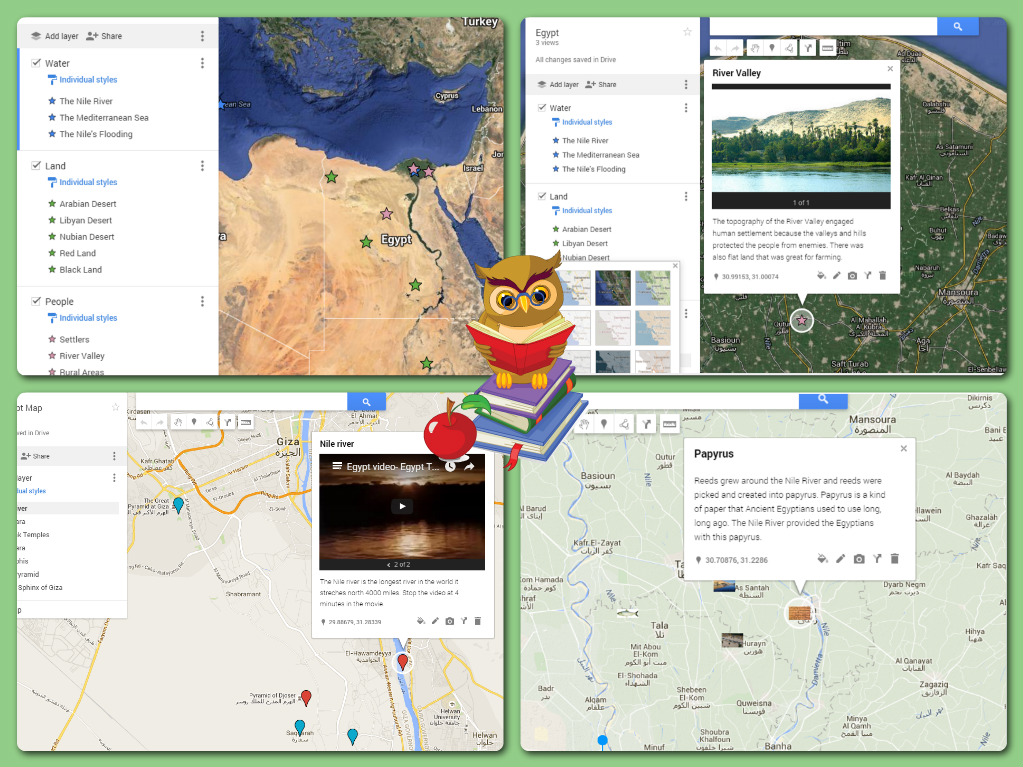
Ready to start exploring Google Maps? Check out this great resource: https://goo.gl/dVu1vi and reach out to the Teacher Resource Specialist for Technology in your building for support.
Thursday, December 3, 2015
Getting Started with Google Drawing from Bryan Fisher
This post is from Bryan Fisher, social studies teacher at High School South
Resources for using Google Drawings:
________________________________________________________
Students have been using Google
Drawing to create illustrated review sheets and group projects in my social
studies classes. So far it’s been well received by the students. When I introduced it, they all just
went to the program and began working!
 |
| Student example #1: Making note-taking more personalized with symbols, arrows, and images. |
 |
| Student example #2: Reviewing concepts in social studies with Google Drawing. |
We have only used it a few times,
but I am interested in learning more about the program for the future. In the
future, I think we might try to use Google Drawing for other tasks like making
timelines and graphic organizers.
~Bryan
________________________________________________________
Resources for using Google Drawings:
- Google Support (Drawings)
- Google Drawing Helpful Hints
- Google Drawing FAQs (from Rockland Public Schools)
- Folder of templates for visual and personalized note-taking
Tuesday, November 24, 2015
A couple of DYKs about Google Sheets from Nadine Dunn
This post is from Nadine Dunn, guidance secretary at High School South.
___________________________________________________________
DID YOU KNOW...that you can flip your data around in a Google Spreadsheet?
Printing a Google Response Form
– Should be an easy thing but sometimes the information we collected runs very
wide (longer than landscape view). This happens because your Form “Questions”
become the spreadsheet’s column headers.
Wouldn’t be great if you could swap
the Column headers and the answer rows? Well I just learned you CAN!
Once
you have collected ALL your responses (I mean ALL – this won’t work if the
spreadsheet is still a “LIVE” document), Go to an empty cell and type in the array
formula =Transpose(A#:B#). Once you use this formula, the information you
collected fills in the empty cells below it. ONLY your question “headers” are
running down the side and your answer “rows” are now your columns.
Here is a screenshot of what you
would see after you just used your Transpose formula:

Once the information has
switched or flipped; the formula disappears and you can then HIDE (NOT Delete)
the rows to make the Flipped view the only view you display.
DID YOU KNOW...you can sort multiple columns of information in Google Sheets all at once?
To sort in a Google Spread
sheet – you want to think of importance from lowest to greatest.
For instance: You have three
columns, “Names”, “Report Title”, and “Grade.” You want to see how many students
in your class received a certain grade and do that alphabetically. In this
case, the grade is more important than the name. You would sort the “name”
column first (lowest importance), and then sort the “grade” column (highest importance).
Names
|
Report
|
Grade
|
Skywalker,
Leia
|
Long
Lost Sibling
|
90
|
Farris,
Matt
|
Vacations
|
85
|
Solo,
Han
|
Wookies
are People too
|
85
|
Test,
Frank
|
IQ
vs. Intuition
|
85
|
Smith,
Joe
|
Cats
& Dogs
|
70
|
(Once sorted by “Names" and then “Grades”, the
sheet would look like this.)
~Nadine
_____________________________________________________________
Click here for a full list of function options for Sheets from Google.
Want to keep the conversation going? Leave a comment below.
Tuesday, November 17, 2015
A User Guide for Google Classroom from Tovi Spero
This post is coming to us from Mr. Tovi Spero, physics teacher at High School North.
In the recent PD on the use of Google Classroom I have put together a simple user guide to setting up and using Google Classroom. https://goo.gl/3aWXKM
____________________________________________________________
In the recent PD on the use of Google Classroom I have put together a simple user guide to setting up and using Google Classroom. https://goo.gl/3aWXKM
What is in there now is the basics of setting up. If you are
currently using Google Classroom and have anything to add all WWPRSD users have
editing rights. Please add!
I have also included a section for questions that people have that
I or anyone on the document can respond to.
-Tovi
-Tovi
Monday, September 28, 2015
Friday, September 18, 2015
An Issue w/ Google Classroom's 'Turn In' Feature - FIX
I had a couple of teachers, recently, bring an issue to my attention about the 'Turn In' feature for assignments in Google Classroom. The student would try to 'Turn In' an assignment and they would get an error message:


Here is a resource I put together to assist them on how to fix this issue themselves:
Thursday, September 17, 2015
Wednesday, September 16, 2015
Wednesday, September 2, 2015
What can we do with our Google accounts?
What can we do with our Google accounts?
__________________________________________________________
There are lots of really great educational technology resources out there and many new ones developed every day! With so many choices, it can be difficult to know where to start or how to decide which ones are the best to use. Through the last 9 years of using Google products with my students, I have learned that for most things we want to do in school, Google has a perfect product for the task.
Google is just a really great match for education. As a company, Google keeps evolving and growing. And now -- more than ever -- Google is focused on developing products that meet the needs of students and teachers. This two-minute video highlights some of the ways that the company and its products have changed over the years:
The sky really is the limit when we think of what our students can do with the tools that Google provides...and what they will be able to do in the future as new products are developed.
Here are just a few ideas to consider trying with your students and their WWPRSD Google Apps for Education accounts:
Here are just a few ideas to consider trying with your students and their WWPRSD Google Apps for Education accounts:
- design and use custom search engines and refined research strategies (Google Search)
- classify, curate, organize, and share collections of web sources (Bookmarks)
- create custom contact groups and distribution lists (Contacts or Groups)
- compose and store documents saved in the cloud (Docs)
- collaborate in real-time on documents (Docs), presentations (Slides), spreadsheets (Sheets) and more
- discuss and debate with other students across the school, district, state, and world (Hangouts)
- get organized and prioritize tasks (Google Calendar and Google Keep)
- create infographics and other design projects (Google Drawing)
- publish content for authentic audiences (Google Sites and Blogger)
- digital and custom mapping (Maps and Google Earth)
- and there's so much more!!!
One of the newest Google products is designed specifically with students and teachers in mind. Take a look at this short video about Google Classroom and see how it is the perfect online tool to connect with your students and to incorporate many of the other products mentioned in the list above:
Are you already using any of the resources mentioned on this list? Maybe some that weren't mentioned? Get the conversation started and leave a message in the comments section below. You can also continue the conversation on Twitter with our district hashtag: #WWPRSD.
And don't forget to reach out to the resource specialist in your building for resources, to talk about these ideas further, to set up share sessions, or to coordinate other professional development.
And don't forget to reach out to the resource specialist in your building for resources, to talk about these ideas further, to set up share sessions, or to coordinate other professional development.
Wednesday, May 20, 2015
Mystery Hangouts in Ms. Rosenberg's 5th Grade Class - A Student Perspective
Back in the late fall Ms. Annie Rosenberg (@OMinEdu) approached me with an idea-she wanted to host a Mystery Skype or Mystery Google Hangout (GHO) with her 5th grade students. Through careful planning and facilitation, Ms. Rosenberg's 5th graders have had several Mystery GHOs across the US and one with an international school in Ghana! I have enjoyed working with this class and was excited when some of the students wrote about their experience. Below is the article they wrote about their year of Mystery GHOs and a video they created with their amazing teacher.
Mystery Hangouts
By: Jackie, Megan, Parmida and Sid
What is a Mystery Hangout?
A mystery hangout is where two classes in the world connect using Google Hangout. Each class guesses where the other class is by asking questions. They can only use yes or no questions. If we had time we would figure out the city of the other class we are doing a Mystery Google Hangout with.
After we finish our actual hangout, we talk about what we did well and what places we can improve upon. We also share facts about our state, town and school.
Jobs That We Have
For this activity, we have eight kinds of jobs. There are greeters, recorders, think tanks, runners, inquirers and lastly the reporters.
First the greeters, the people who go on the camera, greet the other class and fill in jokes on research time. The recorders are people who write down the questions that have been asked by the inquirers and the people in the other class.
Think tanks use the clues to find where the other class is. The runners are the people who transport the ideas and the plans from think tanks to inquirers to greeters. The inquirers are people who uses facts about the place we think the other class is in and make yes or no questions out of them, they also answer the other classes questions.
Finally, the reporters take videos, pictures and jot notes about what is happening. One of the reporters also tweet on Twitter about the mystery hangout on our class account.
 |
Places We Have Traveled To
We’ve had eight mystery hangouts so far:
What Can You Learn From Mystery Hangouts
Mystery hangouts help us with the 21st century competencies and encourage us to be effective communicators and information literate researchers. Through communicating with other classes, we learn to speak clearly and with good respect, and we strengthen our ability to be collaborative team members by helping our groups and working together to find out the other classes’ locations. We also learn how to be literate researchers by using the internet and other sources to solve problems and researching.
Mystery hangouts are a great way to learn about states and countries, and teach us to be diverse and learn about different people, places etc. Finding places on the map enhance our skills to locate states and countries, as well as identifying landmarks like the Mississippi river and the four main oceans.
We are able to grow as students and we can open our eyes to learn about interesting places in the United States or even the whole WORLD using. This is what we call globalization, or becoming a globally aware citizen, and it will definitely help us in the future!
A big thanks to Mrs. Lindes and Ms. Rosenberg for teaching and helping and practicing with us to make this possible.
Here is a video our class created highlighting our Mystery GHO experience.
|
Friday, April 17, 2015
A Teacher's Thoughts
Mrs.O and Google Classroom

I love technology. I love it mainly because I can collect information and store it silently. I am not surrounded by cluttered bookcases full of binders and I don’t need to spend large amounts of money on professional books. So, when I heard about Google Classroom, I decided to give it a try. What I found was a very user friendly site -- my basic instruction included a very brief (about 10 minutes) introduction and I was good to go.
Google Classroom is AWESOME! I loved Hapara but I have decided that Classroom/Google works better for me and it is FREE! First, I just love how it looks when I open the app. I can customize the backgrounds for each folder and the backgrounds are bright and colorful. The folders - one per subject - include a myriad of choices for teachers. My favorite part is the “assignment” feature. I can assign work that includes a specific due date, set of instructions, comments, and a return button that helps me keep track of finished work. I can also grade the work, make comments, and then return the results to my students. With a click of a button the grades are instantly transferred to a spreadsheet -- no more writing grades in my gradebook. However, the best part is that I can attach videos, documents, links or attachments to all assignments. For example, I can send a video to my students, the kids can view the video, and then open a document and write about the video. Because documents created within each assignment are automatically shared with me, I can easily find the completed assignment. There is also a blog option which can be used for interactive comments. This feature can be turned on or off. Fifth graders love talking to each other online!!
I also love the “announcement” button. This feature gives me the option to post any information or tutorials that I want to share with my students and I can do it within the subject folder. No more paper handouts stored in binders, folders, or just jammed into the black hole. All assignments and announcements are easy to find because an icon and explanation appears with each addition.
Finally, the “News and Announcement” page gives me a place to post more links, attachments, videos and documents -- another place to store or share. I could also turn this page into a classroom blog or interactive board.
So, my suggestion is to give this awesome “Google Great” a try. Have fun exploring the possibilities.
Written by Barbara Osburn
5th Grade
MRS
Tuesday, February 24, 2015
The Hispanic World from the Perspective of an 8th Grader ~ written by Rhounda de Windt
About the project:
The objective of this group of lessons is for students to be able to focus on several aspects of
life in Hispanic countries through the eyes of an globally aware person. By researching relevant aspects: geography, economy, government, culture and other aspects of interest and finding information they share with their classmates during a Google doc presentation. Students are applying most, if not all of the competencies to prepare them for the 21st century.
 |
| Students searching Google Images for photos that depict life in the countries they research. |
This is a self-directed project where students are collaborating in pairs to apply their skills as literate researchers to accomplish the task. They are allowed to display limited information on the images and have to use their skills as effective communicators in the target language to share what they know about the different countries so the whole class will become more globally aware. After each presentation the students will receive feedback from their peers on use of language, content of work and presentation skills.
Using Google:
This is the 3rd year that I am requiring the students to submit projects in Google Docs. This
allows the students to work simultaneously on the same document, and me as a teacher, to preview presentations and give individual feedback. I find that the program is convenient in some aspects, such as ease of sharing and organizing the finished presentations.
In addition to being convenient during the project itself, using Google has other benefits as well. For example, the students will have these projects available to them and saved in their own Google Drive for future reference, so they can track their own progress by comparing their own level of proficiency and looking back at previous assignments.
 |
| Students design and customize their presentations in Google Slides. |
In addition to being convenient during the project itself, using Google has other benefits as well. For example, the students will have these projects available to them and saved in their own Google Drive for future reference, so they can track their own progress by comparing their own level of proficiency and looking back at previous assignments.
Student Growth and Progress:
 |
| Students use Google Advanced Search to find information published in the countries they research. |
Since these projects are mostly self-directed, I give advice on how to present images for better impact; how to find more relevant information; how to present more important matters first; to determine the relevance of the information they provide and of course on the use of the target language.
 |
| Students use Google Maps to view street view images of the countries they research. |
Through their research, they learned facts and gained an appreciation for the contributions of the Hispanic countries that were researched. For example, students learned that fingerprinting, the bus, ballpoint pens, and the first artificial heart all came from Argentina. Students have also shared with me connections they are making to what they study in social studies. One student remarked that when John McCain was presented as a person born in Panama, they realized that he was able to run for president of the United States because he was born in an American zone in Panama. This represents some of the critical thinking and application of prior knowledge that this research project invoked.
Moving Forward:
Now we're going to continue to debunk stereotypes about the Hispanic world, by focusing on
 |
| We conference throughout the project, discussing what is working well and what can be improved. |
In the first project, the students will become a famous Hispanic, researching the life and accomplishments of this person and how they have contributed to society, and present in the first person. The second project will allow the students to transfer all of this knowledge to describe a person, of any background or nationality -- even a family member, who has made a difference or is making a difference now.
~Rhounda de Windt
Spanish Teacher
Grover Middle School
Wednesday, February 11, 2015
A Day in the Life of 6th Grade Social Studies (Week of 2/2/15)
In 6th grade social studies classes at GMS, today's technology helps students learn about ancient civilizations.
Engaging Videos:
To augment and enhance information learned through reading materials and photographs, 6th grade social studies teachers use sources like YouTube and Discovery Education to locate and stream videos for their students. Students benefit from the added multi-sensory dimension, of seeing and hearing the concepts through live action, that the videos provide.

Whether the videos are stories narrated by experts and referring to primary sources, reenactments, or a combination, they help students reinforce understandings of what life was like in the ancient civilization as well as how actual archaeologists and historians have preserved and restored the civilizations.
The videos lend themselves well to the work the students are doing, such as identifying themes in the disappearances of some ancient civilizations. After watching video clips, students work in partnerships to collaborate and apply their understanding of cause and effect to the information they learn in the videos.
The sixth graders discuss and debate the negative consequences that the various individual events could have had on the ancient civilizations, such as how a river changing course could impact water supply and the ability to grow crops.
BrainPOP:

With each student having his or her own Chromebook in class, BrainPOP is an excellent resource for students to review and reinforce material at their own pace.
These 6th graders can log into BrainPOP and locate videos related to the topics they are studying.
Additionally, the teachers utilize the resources provided through the site to give students ideas for taking notes and comprehension questions to ensure they understand the concepts.
QR Codes:
 Using the camera on the Chromebooks, 6th graders can access QR codes in the classroom. With a QR code reader installed, students can scan a QR code so that thedigital resource associated with it will pop up on their screen immediately.
Using QR codes in this way is helpful for keeping students curious about what they will encounter next during self-guided work, and gives them practice with the important digital skill that they will encounter outside of school as well.
QR codes can be generated and assigned to documents, presentations, websites, videos, and audio files.
If you'd like more information about QR codes in the classroom, check out these resources from Kathy Schrock: http://www.schrockguide.net/qr-codes-in-the-classroom.html or these from Richard Byrne: http://www.freetech4teachers.com/search/label/qr%20codes#.VM-m9GjF-So.
Electronic Resources with GAFE and SMARTBoards:

Only five months into the school year and these 6th graders are pros at navigating Google Apps for Education (GAFE). Teachers share out electronic resources in the form of Google Documents or Presentations, and students organize and refer to them in their Drive. To record homework and other reminders, students also utilize the Google Calendar.
Engaging Videos:
To augment and enhance information learned through reading materials and photographs, 6th grade social studies teachers use sources like YouTube and Discovery Education to locate and stream videos for their students. Students benefit from the added multi-sensory dimension, of seeing and hearing the concepts through live action, that the videos provide.

Whether the videos are stories narrated by experts and referring to primary sources, reenactments, or a combination, they help students reinforce understandings of what life was like in the ancient civilization as well as how actual archaeologists and historians have preserved and restored the civilizations.
The videos lend themselves well to the work the students are doing, such as identifying themes in the disappearances of some ancient civilizations. After watching video clips, students work in partnerships to collaborate and apply their understanding of cause and effect to the information they learn in the videos.
The sixth graders discuss and debate the negative consequences that the various individual events could have had on the ancient civilizations, such as how a river changing course could impact water supply and the ability to grow crops.
BrainPOP:

With each student having his or her own Chromebook in class, BrainPOP is an excellent resource for students to review and reinforce material at their own pace.
These 6th graders can log into BrainPOP and locate videos related to the topics they are studying.
Additionally, the teachers utilize the resources provided through the site to give students ideas for taking notes and comprehension questions to ensure they understand the concepts.
QR Codes:

Using QR codes in this way is helpful for keeping students curious about what they will encounter next during self-guided work, and gives them practice with the important digital skill that they will encounter outside of school as well.
QR codes can be generated and assigned to documents, presentations, websites, videos, and audio files.
If you'd like more information about QR codes in the classroom, check out these resources from Kathy Schrock: http://www.schrockguide.net/qr-codes-in-the-classroom.html or these from Richard Byrne: http://www.freetech4teachers.com/search/label/qr%20codes#.VM-m9GjF-So.
Electronic Resources with GAFE and SMARTBoards:

Only five months into the school year and these 6th graders are pros at navigating Google Apps for Education (GAFE). Teachers share out electronic resources in the form of Google Documents or Presentations, and students organize and refer to them in their Drive. To record homework and other reminders, students also utilize the Google Calendar.
Students are using GAFE to design and create their own projects like Facebook-inspired profile pages to further understand Chinese philosophers and text spreads like those found in National Geographic. Templates for these projects are shared with students by their teacher in either Docs or Slides.
These projects give students the opportunity to learn about the ancient civilizations and transfer learning while also exploring the creation and layout of authentic nonfiction genres.
 Having a SMARTBoard in the classroom also makes it possible to create digital charts (like a KWL) during class discussions or mini-lessons which can immediately be shared with students. 6th graders eagerly volunteer to write the notes on the SMARTBoard, while the teacher circulates around the room and facilitates the discussion.
After the discussion, the teacher saves the image in the SMART Notebook software, which can be incorporated into future lessons and can be shared directly with students.
 Virtual Egypt:
As 6th grade students study the culture of ancient Egypt, modern technology helps bring the ideas to life.
Kinesthetic learning activities combined with the technology are great ways to make long ago and faraway concepts come alive. Students create projects, such as Egyptian cartouches, or wrapping a doll mummy after reviewing the process of mummification, that help them better understand the art and religion of the ancient civilizations they study and express their unique personalities.
Sites like Virtual Egypt make it possible for students to "take a journey back in time" through viewing maps and exploring ancient civilization ruins in 360 degree video tours.
Creating displays of student projects in the classroom and in the digital environment not only keeps these concepts familiar, but helps students to study history in terms of causes and effects.
These projects give students the opportunity to learn about the ancient civilizations and transfer learning while also exploring the creation and layout of authentic nonfiction genres.

After the discussion, the teacher saves the image in the SMART Notebook software, which can be incorporated into future lessons and can be shared directly with students.
Virtual Egypt:As 6th grade students study the culture of ancient Egypt, modern technology helps bring the ideas to life.
Kinesthetic learning activities combined with the technology are great ways to make long ago and faraway concepts come alive. Students create projects, such as Egyptian cartouches, or wrapping a doll mummy after reviewing the process of mummification, that help them better understand the art and religion of the ancient civilizations they study and express their unique personalities.
Sites like Virtual Egypt make it possible for students to "take a journey back in time" through viewing maps and exploring ancient civilization ruins in 360 degree video tours.
Creating displays of student projects in the classroom and in the digital environment not only keeps these concepts familiar, but helps students to study history in terms of causes and effects.
Subscribe to:
Posts (Atom)