 |
New Classroom Android and iOS mobile apps.
|
Dear Google Apps for Education admin,
As you may know, we recently launched a Classroom mobile app for both Android and iOS, and today, we are releasing the ability for students to view the class resource page and a few other mobile features for both Android and iOS. The Classroom app allows students to do their work anytime and anywhere and it is designed for schools with iPads or Android tablets and students' personal devices.
If your school is using managed Android tablets, iPads, or ChromeOS devices, please consider installing the Classroom app centrally, as students may not be able to install it themselves. To make sure students have a great experience using the Classroom app, be sure to install the Drive and Docs apps (Docs, Slides, and Sheets) to the devices at the same time. To learn more about our native mobile apps, please visit the Classroom Help Center.
For all the latest Classroom updates, check out the What's new in Classroom page or connect with other domain admins in the Google for Education Connect. We are continuing to innovate and add new features, so please continue encouraging your teachers and students to use the Send Feedback button in Classroom.
Thanks,
The Classroom Team
|
Saturday, February 28, 2015
New Classroom Android and iOS mobile apps.

Friday, February 27, 2015
PD Day Follow up
FOLLOWING UP:
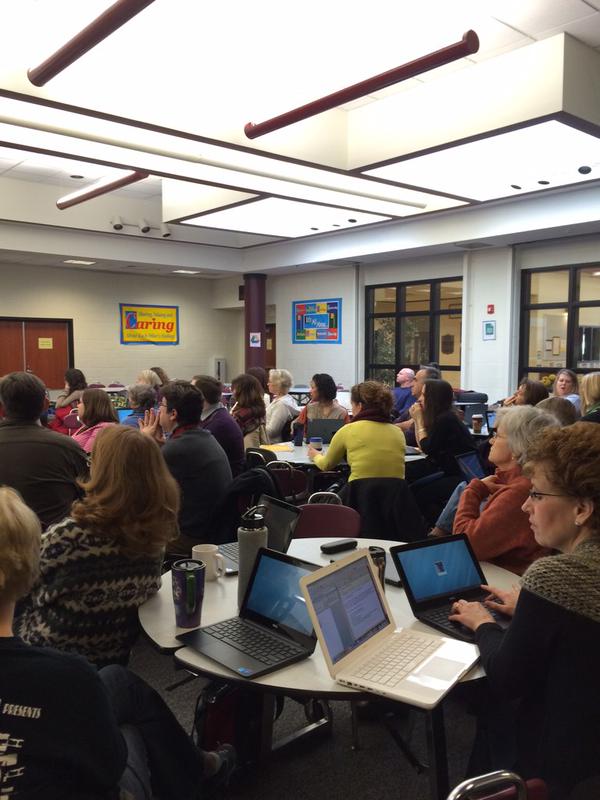
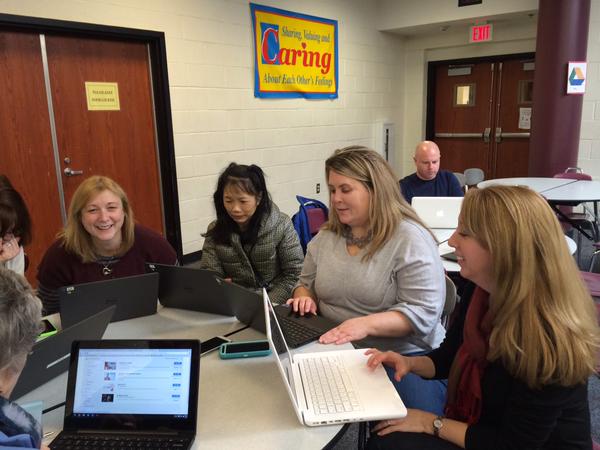
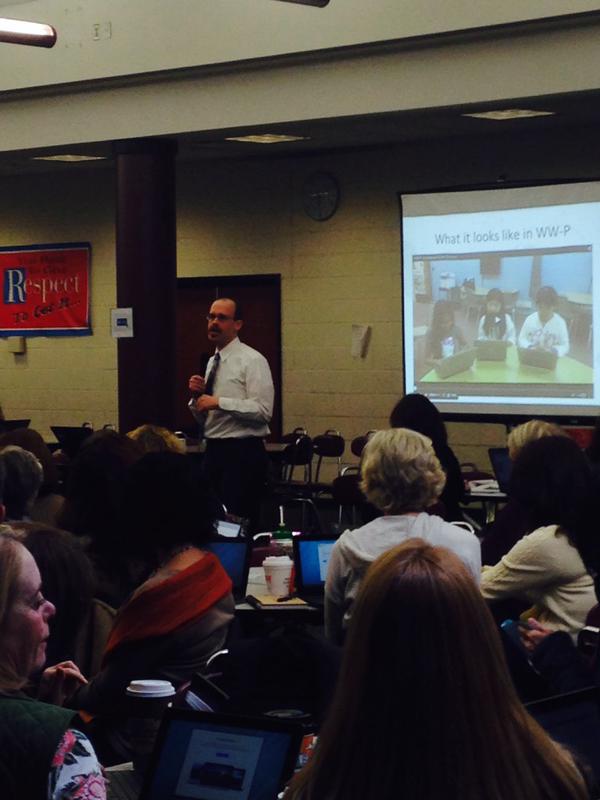
We had a great time working with all of you on the February 19th professional development day. As a reminder, our objectives for the day were:
To take ownership of my own professional development by understanding myself as a learner and setting achievable goals.
To develop a clear understanding of the district technology initiatives including Google Apps for Education (G.A.F.E.).
These objectives are ongoing. Your teacher resource specialists are available to work with you in further exploring the concepts addressed and introduced on February 19th.
FEEDBACK
Here is some of the feedback that you shared with us:
“The time we were given to break off into different groups that wanted to focus on different parts of Google i.e. Forms, Docs, etc. The collaboration was great between people from different disciplines and content areas.”
“I appreciated the time to work with my department colleagues. When a tech staff member came to a group I was in, they shared good information and were helpful.”
“I loved getting time to work in small groups, which allowed us to really discover the different components of Google. I also liked learning about the different apps that other people shared.”
“The presentation given in the beginning was great. It gave us an idea of the expectations of utilizing the chromebook in our lessons.”
RESOURCES
Many resources that you may find helpful for your individual professional growth can be found in the shared Resources folder in Google Drive. Other resources and ideas can be found here on our WWP 1:1 Learning blog.
CONTACT US
Community Middle School
Allan Johnson
Grover Middle School
Melissa Morris
Millstone River
Laura Agnella
Village School
Stacey Lindes

Thursday, February 26, 2015
Google Docs editors URL format change
Posted: 26 Feb 2015 10:35 AM
PST
To help people use the Google Docs editors when
signed in to multiple accounts in an upcoming release, we are changing the
structure of Docs editor URLs to no longer use the format /a/DOMAIN for Google
Apps customers and to instead use a format containing /u/.All current URLs will continue to work after this change. If you click on an old URL, you will be redirected to the new structure that removes /a/DOMAIN without having to do any additional work. Note that users may still see /a/DOMAIN included in Docs editor URLs for an approximately one week-long transition period after this launch.
Why are we making this change?
Currently, when people are signed-in to multiple Google accounts and open a Docs editor file, they may be asked to select which account to use to open the file. After this change, the Docs editors will be able to select which account to use automatically by examining all logged in account sessions and choosing the first one with view access (prioritizing accounts in the same domain as the document owner) without people needing to specify.
In the future, the change will also enable us to lift the one account per domain restriction currently imposed while using the Docs editors.
Impact
We vetted this change with trusted Apps customers and partners and do not anticipate any disruptions as a result. However, to mitigate any unforeseen impact on Apps customer and partner systems and processes, we are announcing this change four weeks in advance to allow for any necessary adjustments.
Release track:
Rapid release and Scheduled release coming in 4 weeks
Wednesday, February 25, 2015
Customizable headers and footers, page numbers in Google Docs
Posted: 25 Feb 2015 10:17 AM
PST
People using Google Docs
can now use different headers and footers on the first pages of their
documents, which comes in handy for:
§ Following academic
formatting guidelines (e.g. MLA, CMS, APA)
§ Starting page numbering
on the second page
§ Making a title page
without headers or footers
After inserting a header or footer in your document you’ll see a new checkbox―just tick it and you’ll be able to set a different header and footer on the first page:
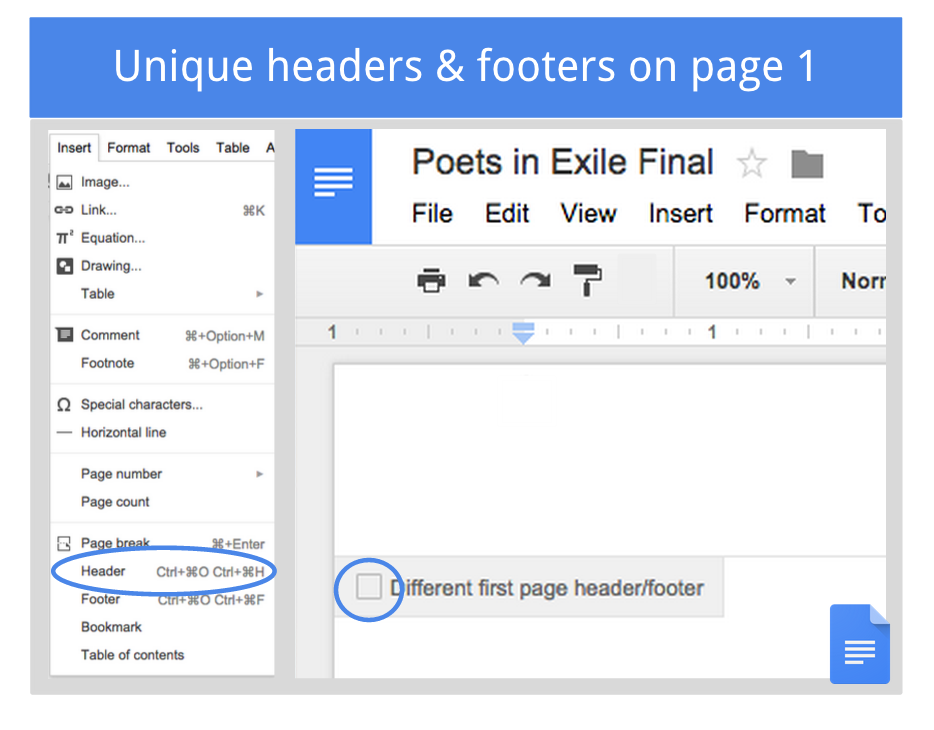
There’s also a new Insert > Page Number menu that lets you customize how and where you start your page numbers―like on the bottom of the second page, for example.
Release track:
Rapid release and Scheduled release
Custom themes, mobile app improvements for Google Classroom
Posted: 25 Feb 2015 11:22 AM
PST
Today we announced several improvements to Google Classroom. On the
web, teachers can now bring their own personal touches to Classroom by
uploading their own images to use as themes. They can add their own custom
images, or choose from our gallery of options, which has been updated with 18
new images and 30 pattern themes.For the Android and iOS Classroom apps, we added the ability for students and teachers to view the class resource page, and a few other features for both Android and iOS.
The Classroom app allows students to do their work anytime, anywhere and is designed for schools with iPads or Android tablets and students' personal devices. If you are a Google Apps for Education admin and your school is using managed Android tablets, iPads, or ChromeOS devices, please consider installing the Classroom app centrally, as students may not be able to install it themselves. To make sure students have a great experience using the Classroom app, be sure to install the Drive and Docs apps (Docs, Slides, and Sheets) to the devices at the same time.
To learn more about our native mobile apps, please visit the Classroom Help Center.
Release track:
Rapid release and Scheduled release
New views, settings and more for the Google Calendar Android app
Posted: 25 Feb 2015 01:52 PM
PST
A new version of the Google Calendar app for Android is coming to Google Play
over the next few days. Based on your feedback, we’ve made a number of
improvements―with more on the horizon:
§ See more events at a
glance with 7-day week view and pinch-to-zoom
§ Add Google Drive files
to events
§ Drive will check if all
event invitees can open them
§ New Birthday calendar
settings (coming to Calendar web next week)
§ Birthday calendar can be
hidden
§ Control whether
birthdays from Google+ are shown
§ A new option to show
week numbers in settings
§ Import .ics files sent
to you in Gmail and other apps
Release track:
Rapid release and Scheduled release
Tuesday, February 24, 2015
The Hispanic World from the Perspective of an 8th Grader ~ written by Rhounda de Windt
About the project:
The objective of this group of lessons is for students to be able to focus on several aspects of
life in Hispanic countries through the eyes of an globally aware person. By researching relevant aspects: geography, economy, government, culture and other aspects of interest and finding information they share with their classmates during a Google doc presentation. Students are applying most, if not all of the competencies to prepare them for the 21st century.
 |
| Students searching Google Images for photos that depict life in the countries they research. |
This is a self-directed project where students are collaborating in pairs to apply their skills as literate researchers to accomplish the task. They are allowed to display limited information on the images and have to use their skills as effective communicators in the target language to share what they know about the different countries so the whole class will become more globally aware. After each presentation the students will receive feedback from their peers on use of language, content of work and presentation skills.
Using Google:
This is the 3rd year that I am requiring the students to submit projects in Google Docs. This
allows the students to work simultaneously on the same document, and me as a teacher, to preview presentations and give individual feedback. I find that the program is convenient in some aspects, such as ease of sharing and organizing the finished presentations.
In addition to being convenient during the project itself, using Google has other benefits as well. For example, the students will have these projects available to them and saved in their own Google Drive for future reference, so they can track their own progress by comparing their own level of proficiency and looking back at previous assignments.
 |
| Students design and customize their presentations in Google Slides. |
In addition to being convenient during the project itself, using Google has other benefits as well. For example, the students will have these projects available to them and saved in their own Google Drive for future reference, so they can track their own progress by comparing their own level of proficiency and looking back at previous assignments.
Student Growth and Progress:
 |
| Students use Google Advanced Search to find information published in the countries they research. |
Since these projects are mostly self-directed, I give advice on how to present images for better impact; how to find more relevant information; how to present more important matters first; to determine the relevance of the information they provide and of course on the use of the target language.
 |
| Students use Google Maps to view street view images of the countries they research. |
Through their research, they learned facts and gained an appreciation for the contributions of the Hispanic countries that were researched. For example, students learned that fingerprinting, the bus, ballpoint pens, and the first artificial heart all came from Argentina. Students have also shared with me connections they are making to what they study in social studies. One student remarked that when John McCain was presented as a person born in Panama, they realized that he was able to run for president of the United States because he was born in an American zone in Panama. This represents some of the critical thinking and application of prior knowledge that this research project invoked.
Moving Forward:
Now we're going to continue to debunk stereotypes about the Hispanic world, by focusing on
 |
| We conference throughout the project, discussing what is working well and what can be improved. |
In the first project, the students will become a famous Hispanic, researching the life and accomplishments of this person and how they have contributed to society, and present in the first person. The second project will allow the students to transfer all of this knowledge to describe a person, of any background or nationality -- even a family member, who has made a difference or is making a difference now.
~Rhounda de Windt
Spanish Teacher
Grover Middle School
Subscribe to:
Posts (Atom)