Tuesday, November 18, 2014

Twitter and Pinterest for Professional Developement

Have you been interested in trying out Twitter or Pinterest for professional development?  Both sites are great for making connections with other educators and for gathering ideas you can try in your own classroom.

Check out this resource from our 10/23 unconference for some ideas and examples for using these social media sites to grow your PLN and direct your own professional development.


~Melissa
@mmorriswrite 

Monday, November 17, 2014

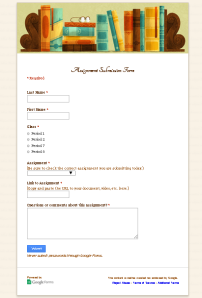
Using Google Forms to Collect Digital Assignments

submission formTeachers are constantly assessing these days.

Whether it be formative or summative assessments, we are collecting feedback from our students to monitor their engagement, participation, and progress.  Many of these assessments are now digital, and a simple Google Form makes all the difference in the world when managing the collection, review, and scoring of these assessments.

  WHY USE A GOOGLE FORM:
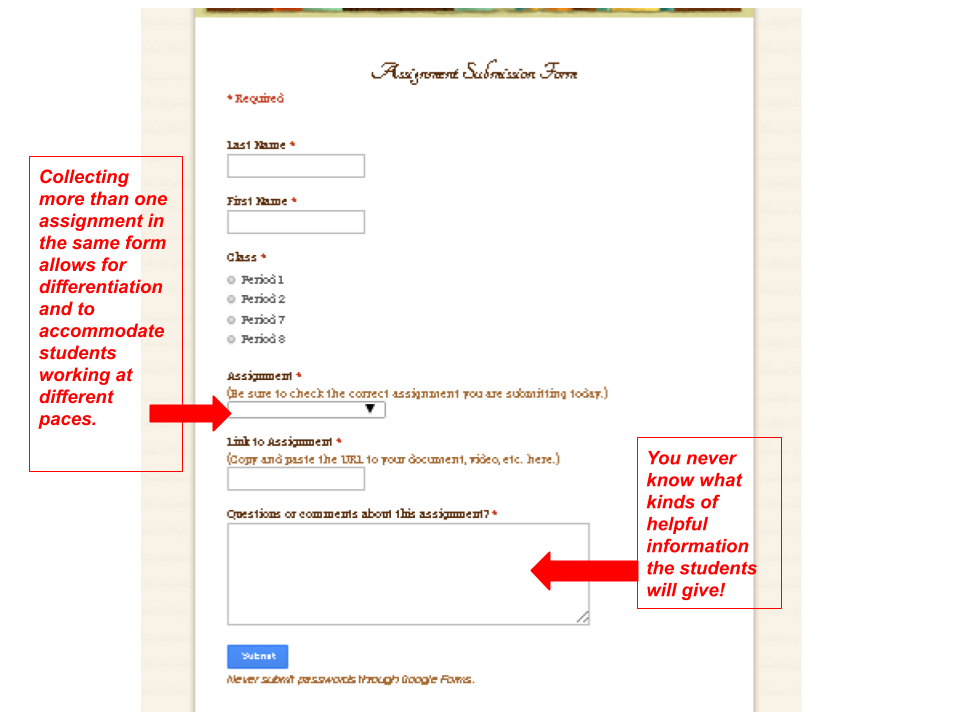
  1. Students submit the assignment through the form. This helps instill a sense of responsibility in the student (as opposed to simply granting a teacher access to the documents).
  2. The forms can be created quickly.  Just few minutes of setup time will save hours searching for and opening assignments.
  3. The forms can be customized.  Each teacher can collect the information in the manner her or she prefers.
  4. The information is collected in a Google Spreadsheet.  This allows the teacher the option to record grades and write notes directly alongside the assignment.  From there, the teacher can sort the sheet by grade or note in order to pull small groups for conferences or to keep track of assessments to use as future student models of work. Also, the spreadsheets can be shared between team and co-teachers.
  5. Any assignment with a URL can be collected this way.  This is great for collecting and keeping track of Google Docs, Slides, Sheets, videos, Symbaloo Webmixes, Padlets, and more!
AN EXAMPLE SUBMISSION FORM:

AN EXAMPLE SUBMISSION FORM SPREADSHEET:

Later, after several assessments have been collected, the responses collected in the spreadsheet can be sorted by student.  This data can be used during student conferences, and with conferences with the students' parents.  The information can be shared with students so that they can include it in their own portfolios to reflect on their progress.

If you have been using Google Forms to collect assignments, or have any questions or suggestions about using this application, please leave a comment below.

~Melissa

(This post was originally published on TODAY IN SCHOOL.)

Friday, November 14, 2014

Inspiration From a Fellow Colleague Leads to this Week's Free Friday 'App'etizer

    Laura Agnella submitted a post about Graphic Organizers on Thursday which had me thinking about how I like to create these on an iPad.  As mentioned in Laura's post, Popplet Lite works very nicely and I sent out as an 'app'etizer last year, Tools 4 Students.  But my current free favorite graphic organizer/brainstorming/mind mapping app is: iBrainstorm.  Why, you may ask, is this my current favorite?  Well, in terms of features, it's simplistic.  Add a sticky note with a limited number of color choices and type out some text.  Draw with limited color choices and line thicknesses or use the eraser.  That's it!  No shapes or bubbles or images to add; don't get overwhelmed with options or choices.  When finished, save it to your photo library; from there, it could be uploaded to Dropbox or Google Drive.  You could also email it if you wanted.  Now, let the students plan & create!

Here is one I started so you can see what it looks like:

(CMS/GMS) Update for the Week of 11/10/14

Dear 1:1 teachers,

Follow our Twitter Feed!
Notice the Twitter feeds on the right side of our blog? 

The feeds are following our district hashtags, #wwp_pd and #wwp1to1. You can use these hashtags, too, whenever you post something on Twitter that is related to the 1:1 learning initiative or professional development.  

Sharing on Twitter is a great way to showcase student work and inspire colleagues.  If you aren't on Twitter yourself, and you want to call us in to see something going on in your class, we can tweet it out for you!

Flowchart for Reporting Chromebook Issues
The flowchart for Chromebook issues has been updated. Please visit this link: Flowchart to view the changes that have been made. Anytime the flowchart is updated, it will be reflected in the date located in the upper right-hand corner.


Connection Issues
This week, the issues we've been having with wireless connectivity were resolved.  Moving forward, please use a Technology Ticket to report any new issues that you and your students may have.  If you report an issue, please make sure to include as much information as possible.
  • The room  where connectivity is an issue
  • The type(s) of devices involved
  • The user having an issue
  • The frequency or duration of the issue

Resources Folder
There is a Resources Folder available to you in Google Drive. As relevant resources are found or created, they are placed into subfolders. The subfolders are organized by applications, competencies, and subject areas, so you may find one resource located in multiple folders.

If you haven’t already done so, please open this link and then add the folder directly to your own Google Drive so that you have access to all of the resources as they are updated. https://drive.google.com/a/wwprsd.org/?srtp=0&pli=1#folders/0B176YWMnfSrJSXJ6bDV3VWtKbzQ

We’d love it if you would contribute to the folders as well! If you have a resource that you would like to share (or a suggestion) please let us know so it can be added.

Have a great weekend!

~Allan and Melissa


Thursday, November 13, 2014

Graphic Organizers


As teachers, we all love graphic organizers because they can help students gain a clearer understanding of material using a visual. They can be used for anything from brainstorming to presenting information, for whole class instruction, individually, or within a group. They are also relatively easy to recreate in digital format.

There are apps out there such as Popplet on the iPad where students can create their own graphic organizers, or Lucidchart in the Chrome Web store for teachers. I really love just using Google Docs and/or Google Drawing and then sharing with the students.  Here are some examples of what you can create.  Feel free to make copies and use these organizers as collaborative tools in your classroom.


There are also graphic organizers in the Google Templates Gallery that you can copy.  Make sure you are in the "Public" tab and search for "Graphic Organizers."

Have fun!

Wednesday, November 12, 2014

BYOD Professional Development Training Session 2: October 23, 2014


On October 23rd, a half-day of professional development training was given to  the high school American Studies II teachers. The agenda for this training class included the following topics:

Part 1: Getting Organized - Sharing class section folders which allow the teacher to access student work. Sharing a class handouts folder in which students can easily view classroom materials.

Part 2: Google Forms and Flubaroo - Developing assessments, surveys and quizzes along with a helpful, easy-to-use automated grading system.
Part 3: Forwarding Gmail to Outlook Email - Simplify the overall flow and management of teacher email.

Here is the presentation: 


Village PTA Internet Safety Presentation